

How can I invite suppliers to the event?
Online version: https://help.allmaz.az/guides/sourcing/invite-suppliers/
Suppliers are invited on the Suppliers step of the Event constructor: write the invitation message, add suppliers with ADD FROM PLATFORM and save.
-
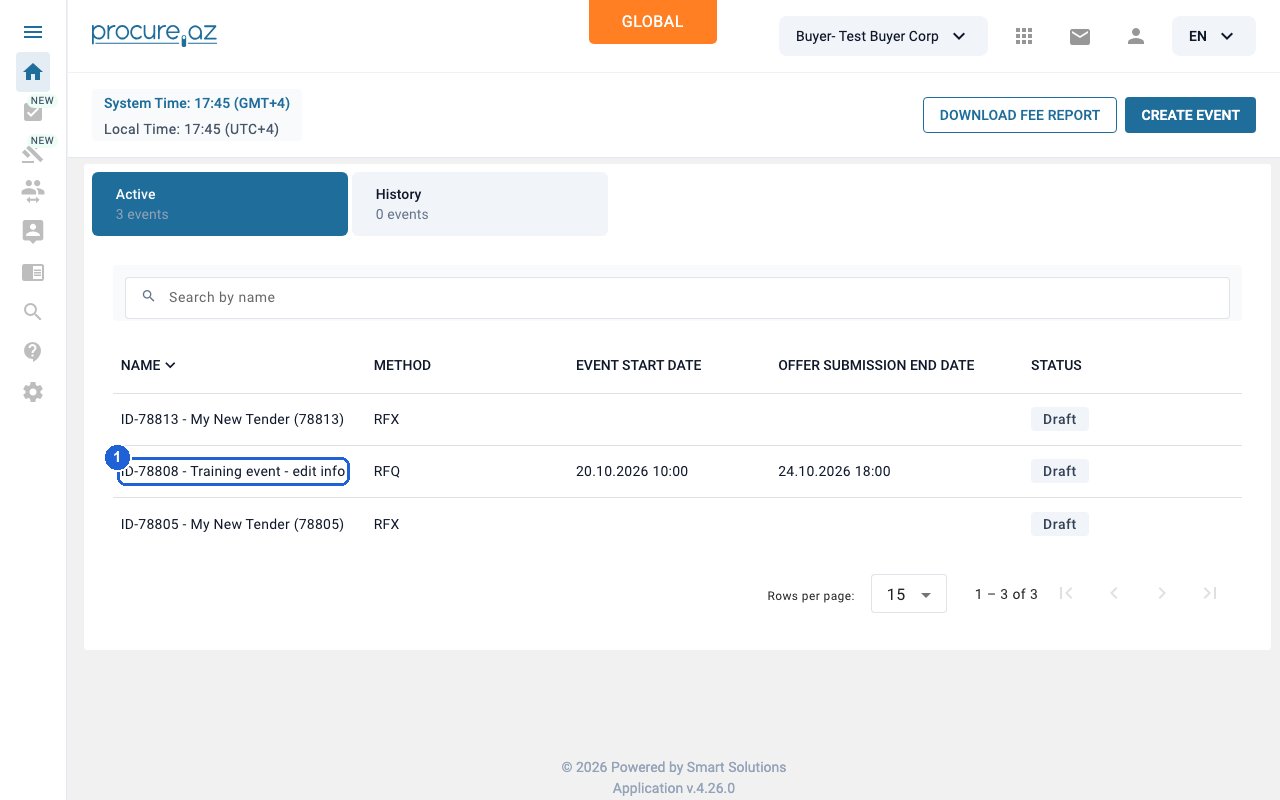
Open the draft event
On the Sourcing dashboard, click the draft event’s row (here “ID-78808 - Training event - edit info”) to open it in the Event constructor.
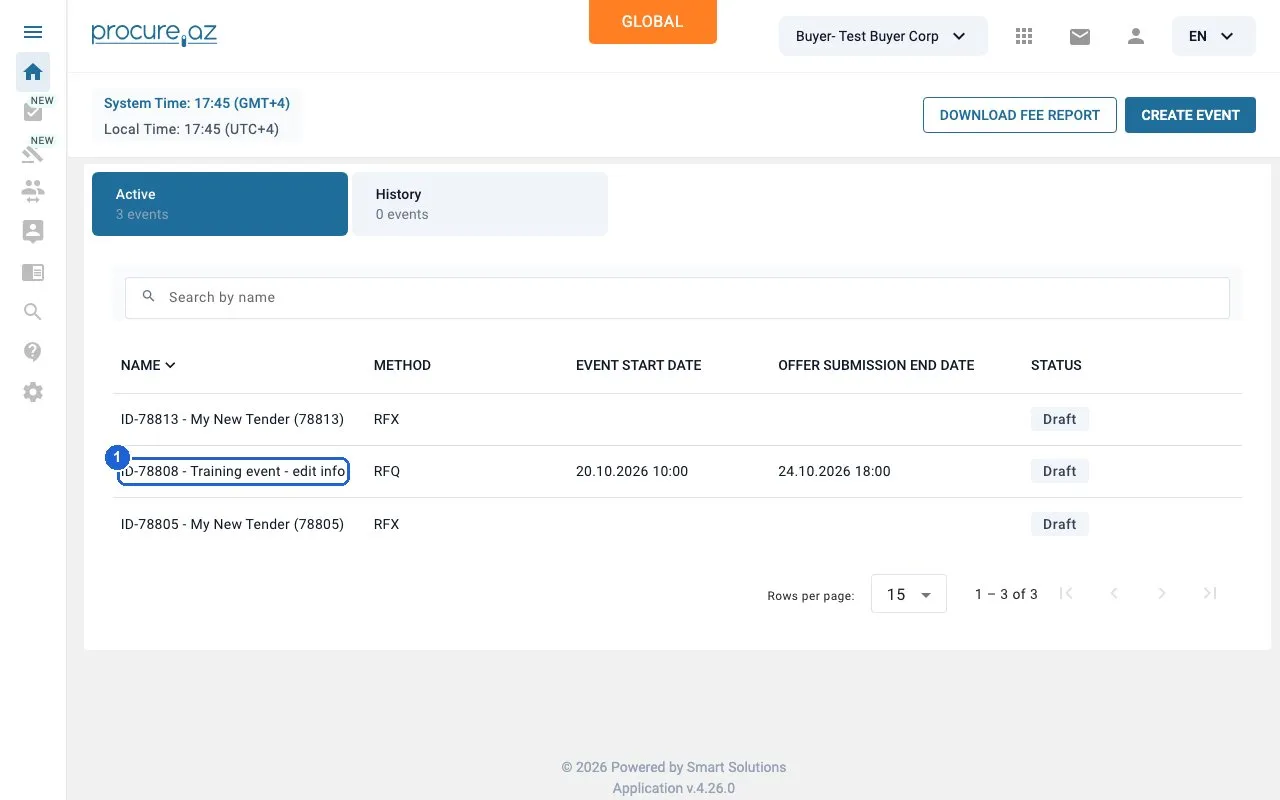
Step 1: Open the draft event — click “ID-78808 - Training event - edit info”. -
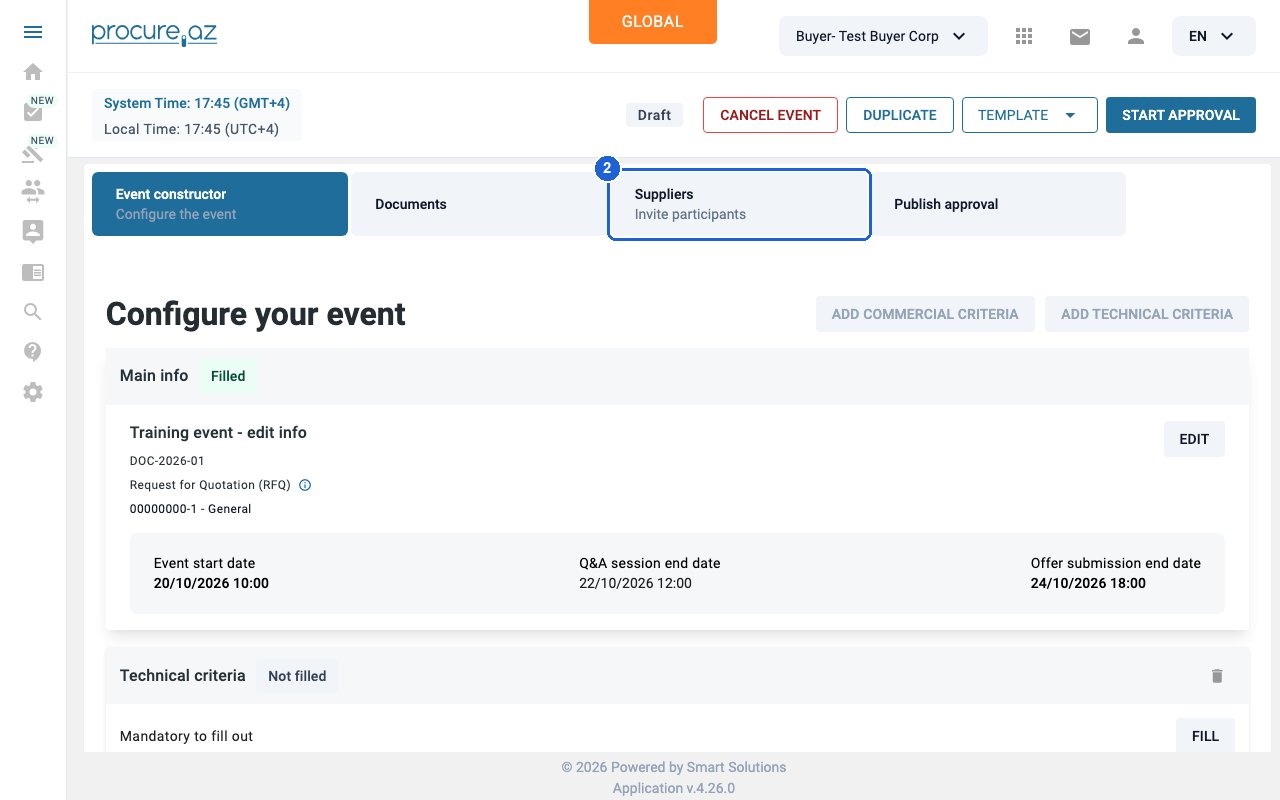
Open the Suppliers step
Click the Suppliers (“Invite participants”) step at the top of the Event constructor. The page “Invite suppliers to event” opens.
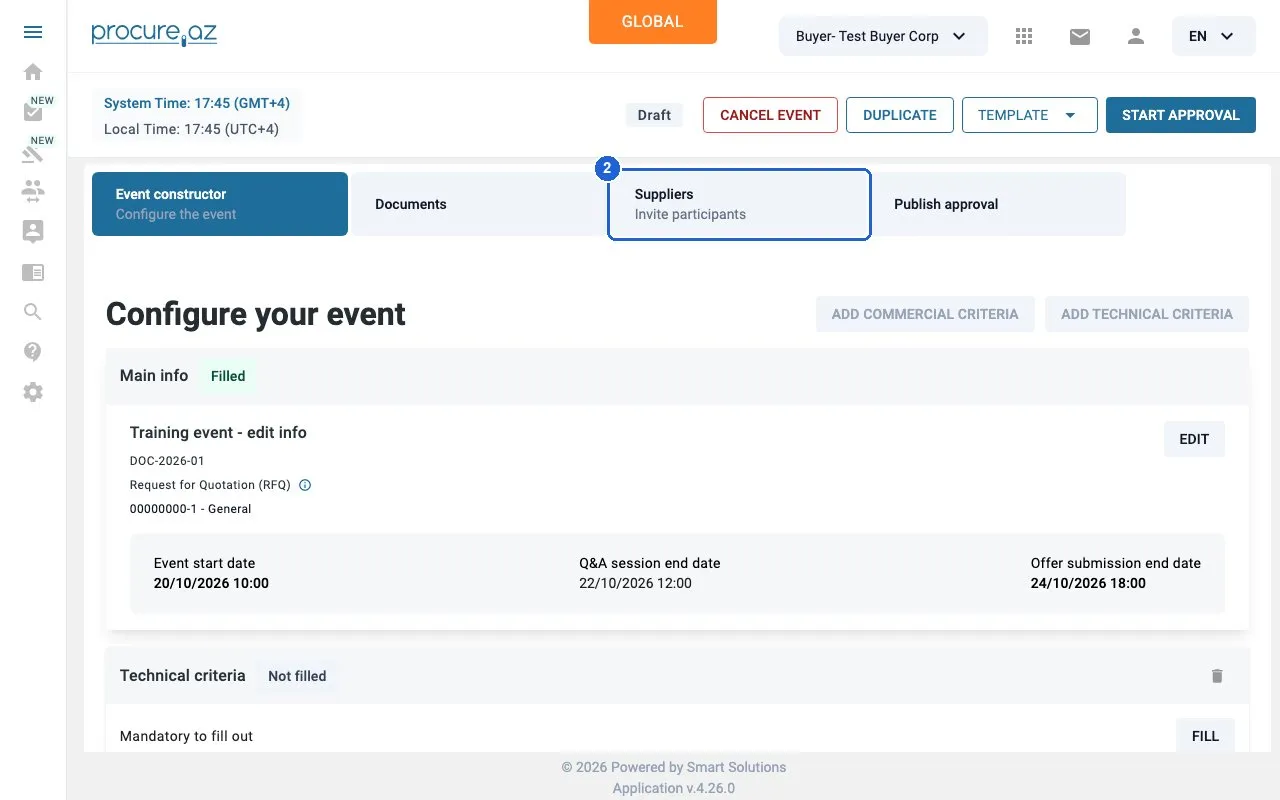
Step 2: Open the Suppliers step — click “Suppliers Invite participants”. -
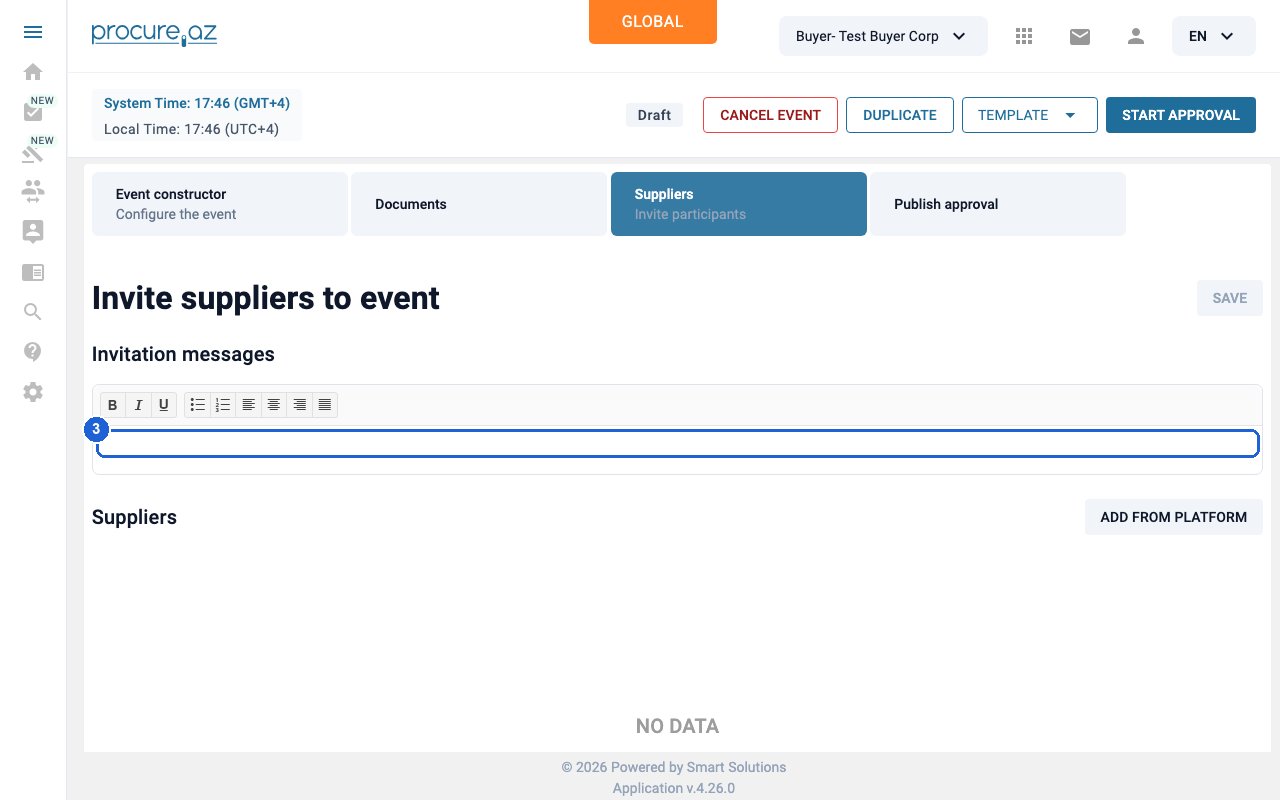
Write the invitation message
Click into the Invitation messages editor and type the message suppliers will receive with the invitation.
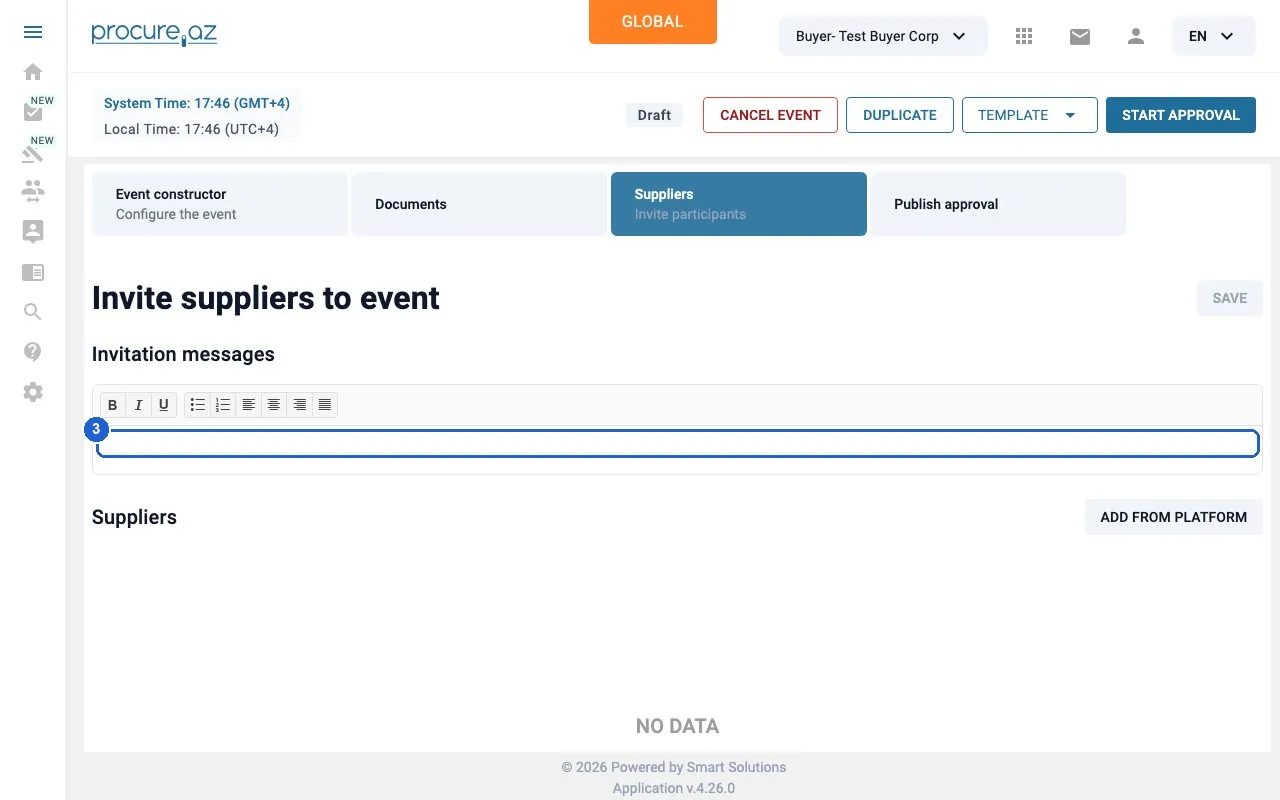
Step 3: Write the invitation message. -
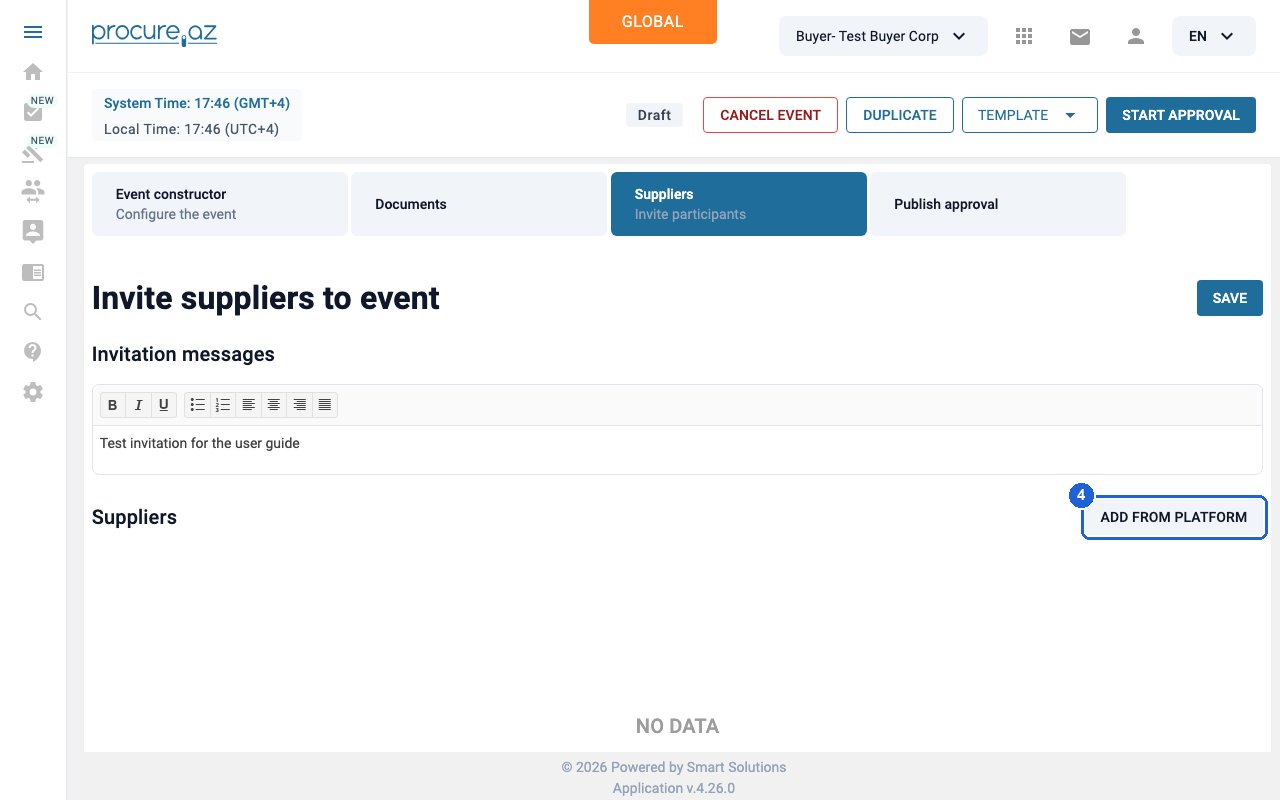
Open the supplier list
Under Suppliers, click ADD FROM PLATFORM.
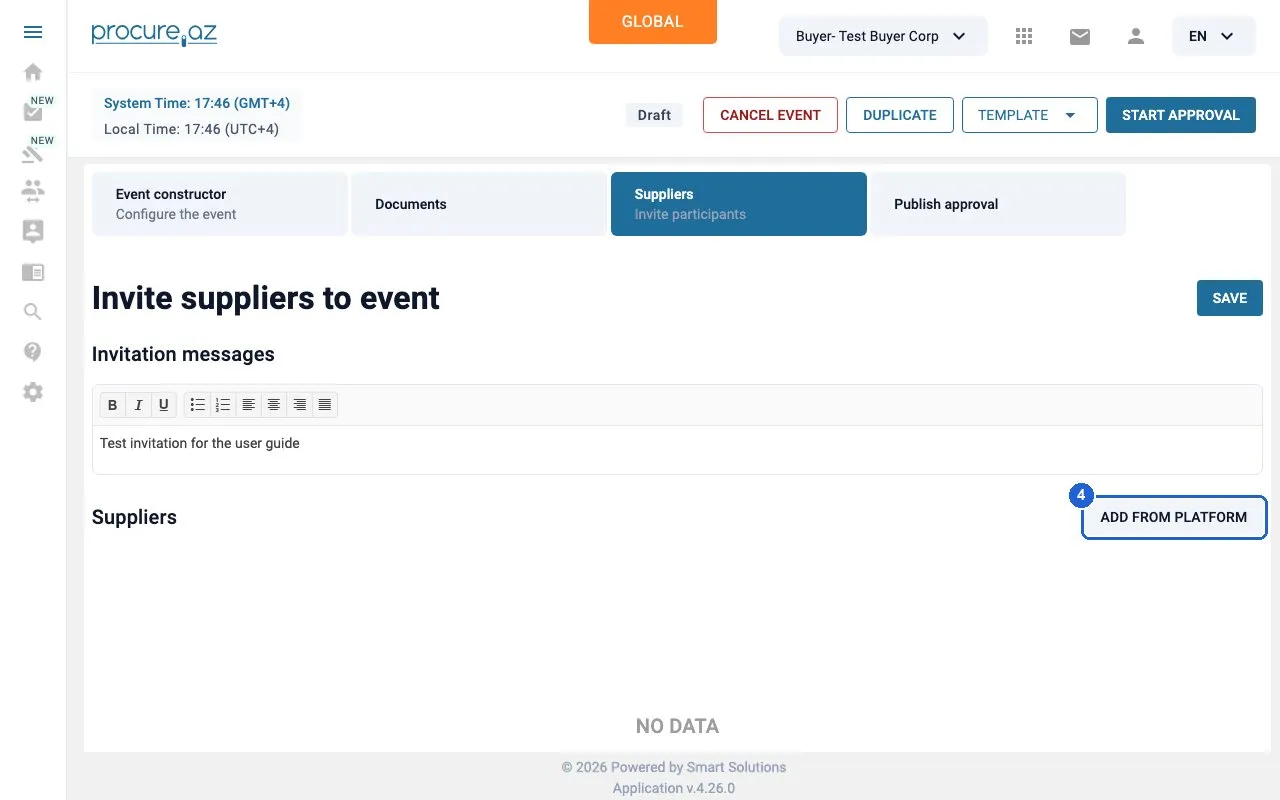
Step 4: Open the supplier list — click “ADD FROM PLATFORM”. -
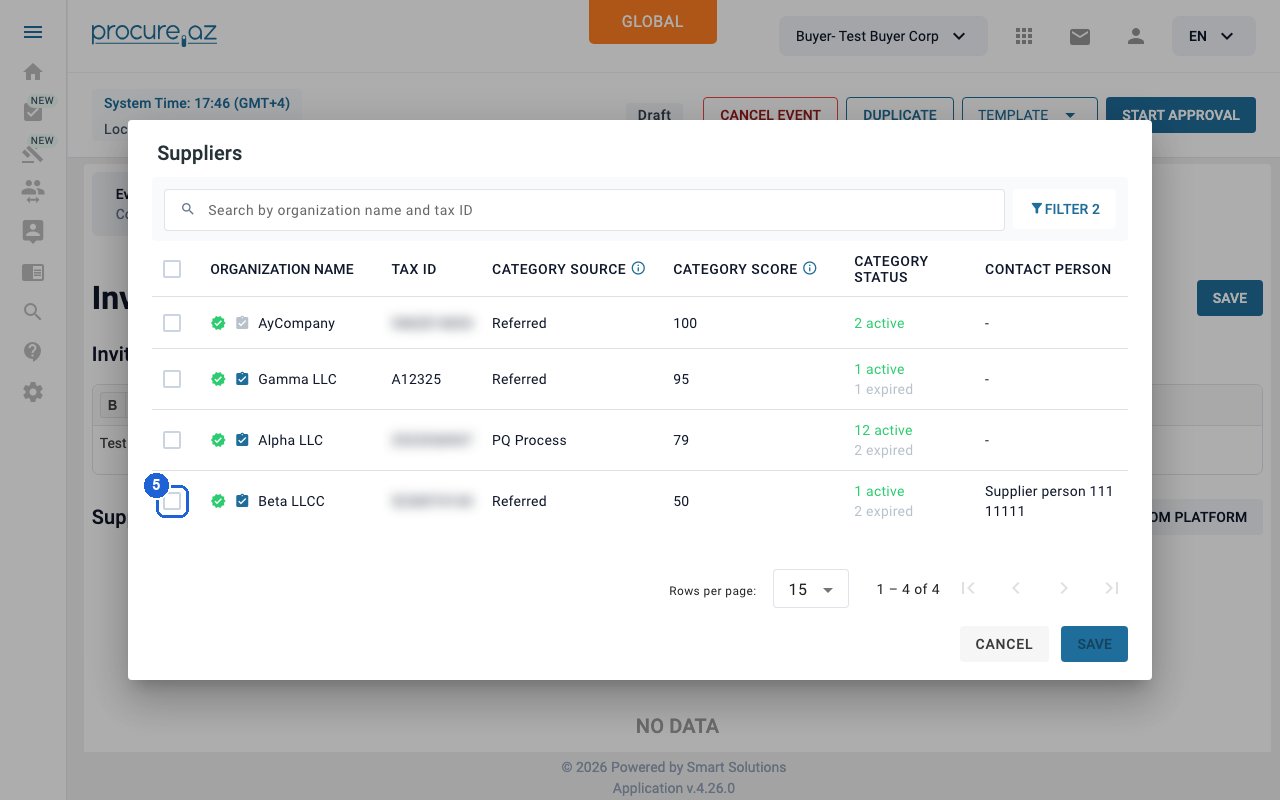
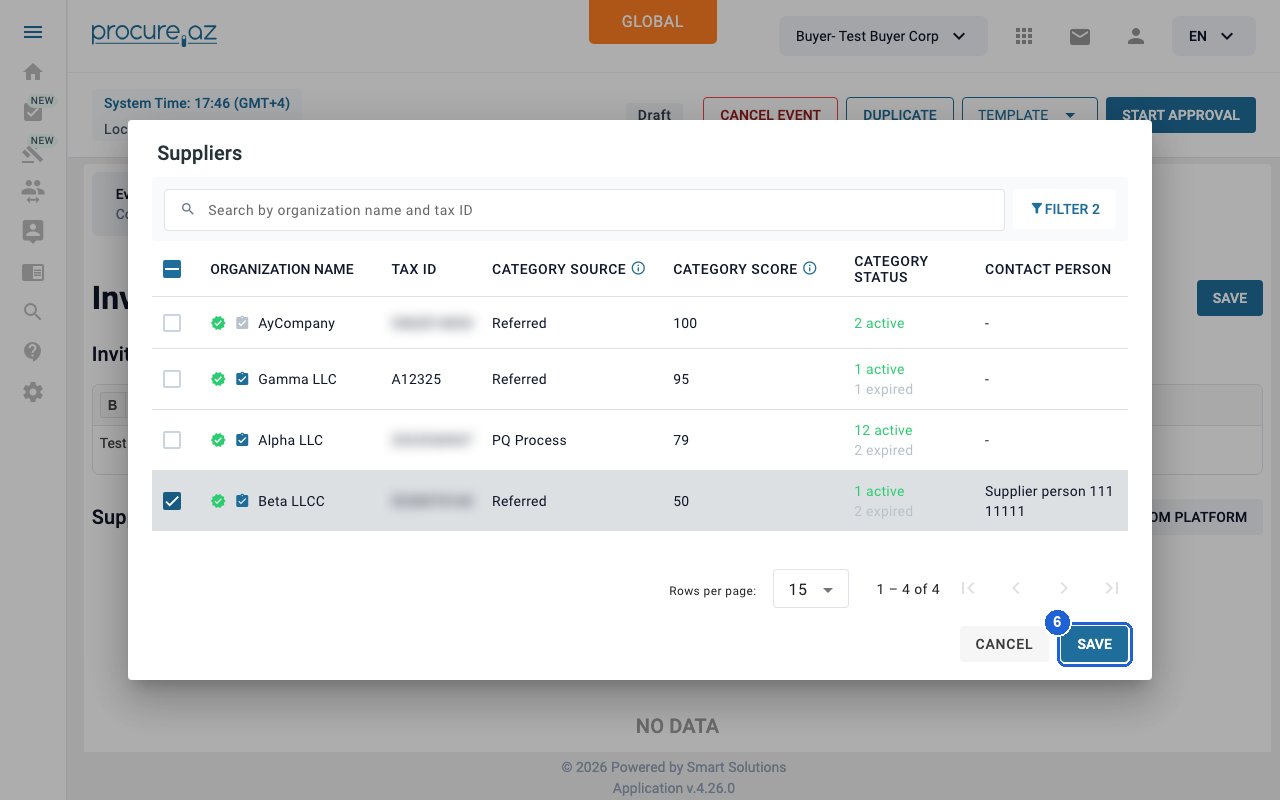
Select the suppliers
Tick the checkbox of each supplier you want to invite (here Beta LLCC). Use the search box or FILTER to find them; the filter starts on the event’s category and active suppliers.
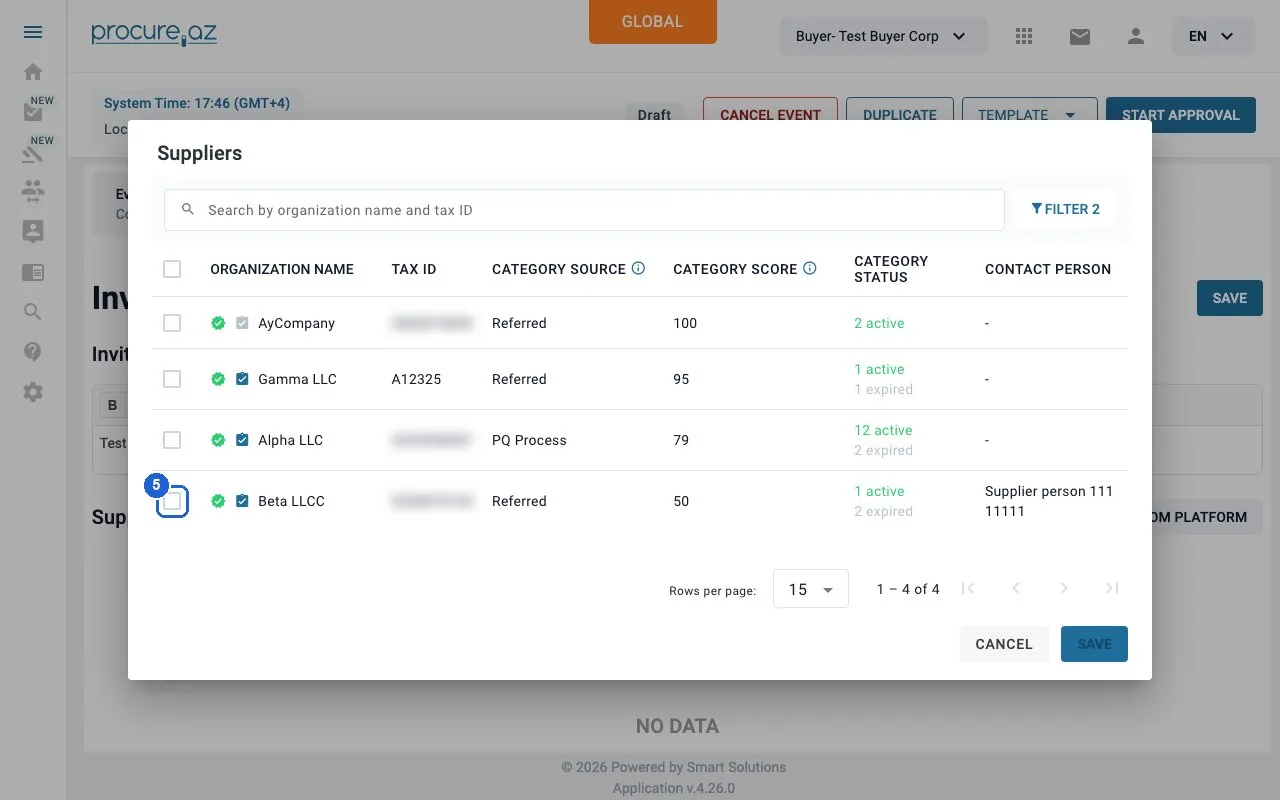
Step 5: Select the suppliers — click “Beta LLCC”. -
Add them
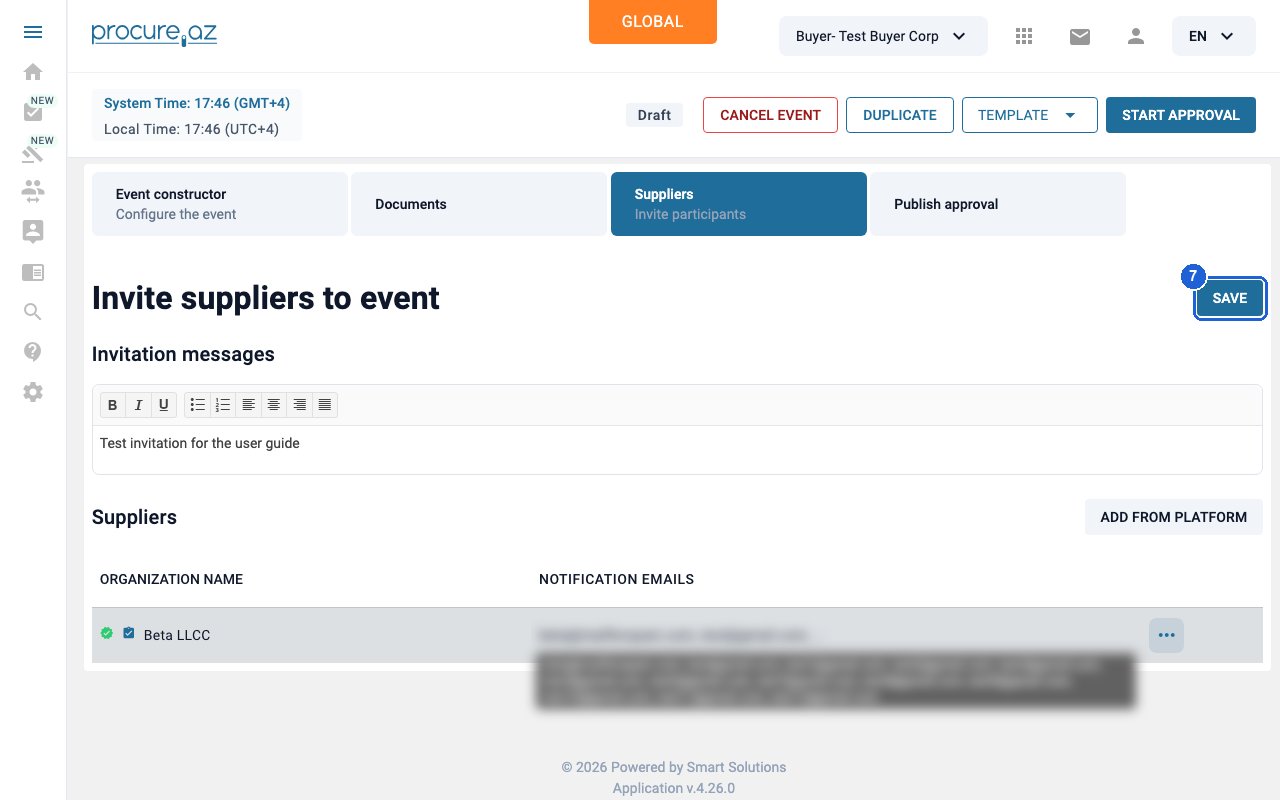
Click SAVE at the bottom right of the Suppliers dialog. The suppliers appear under Suppliers with their notification e-mails.
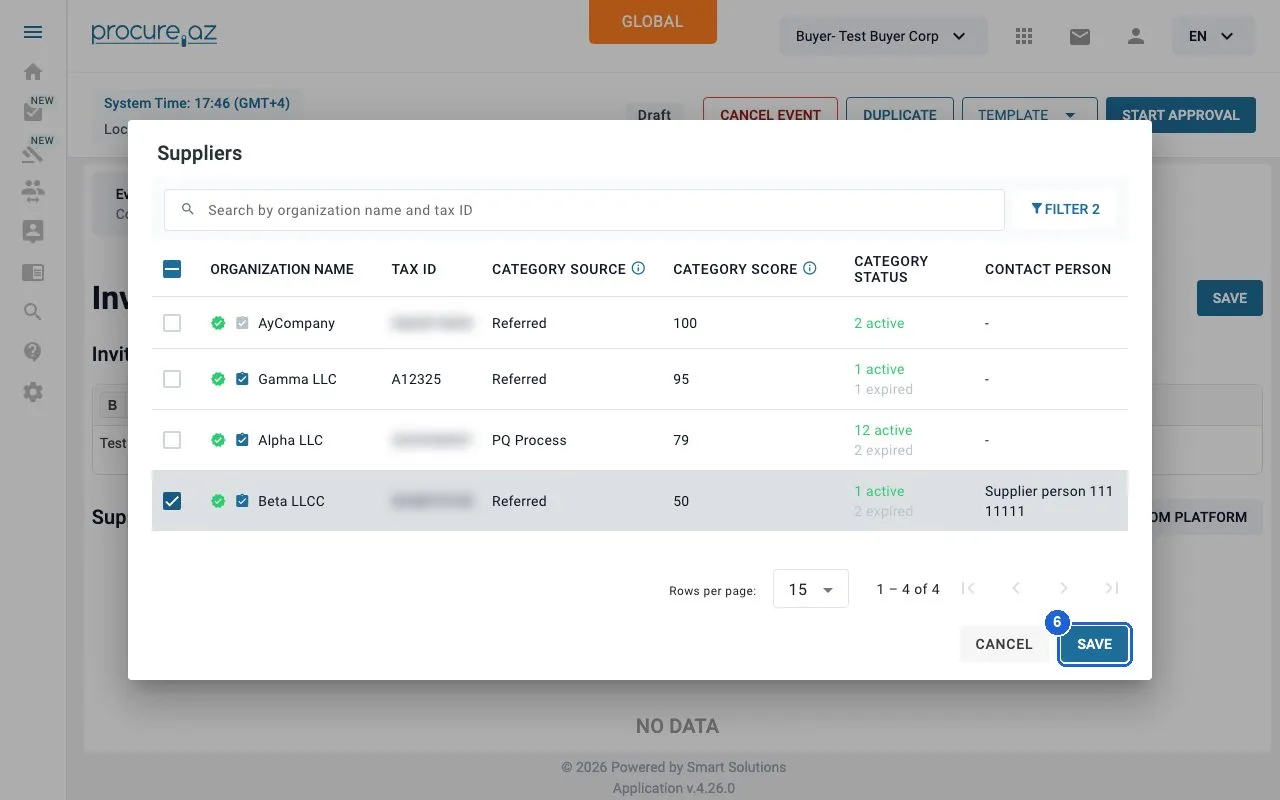
Step 6: Add them — click “SAVE”. -
Save the page
Click SAVE at the top right of the page to keep the message and the supplier list.
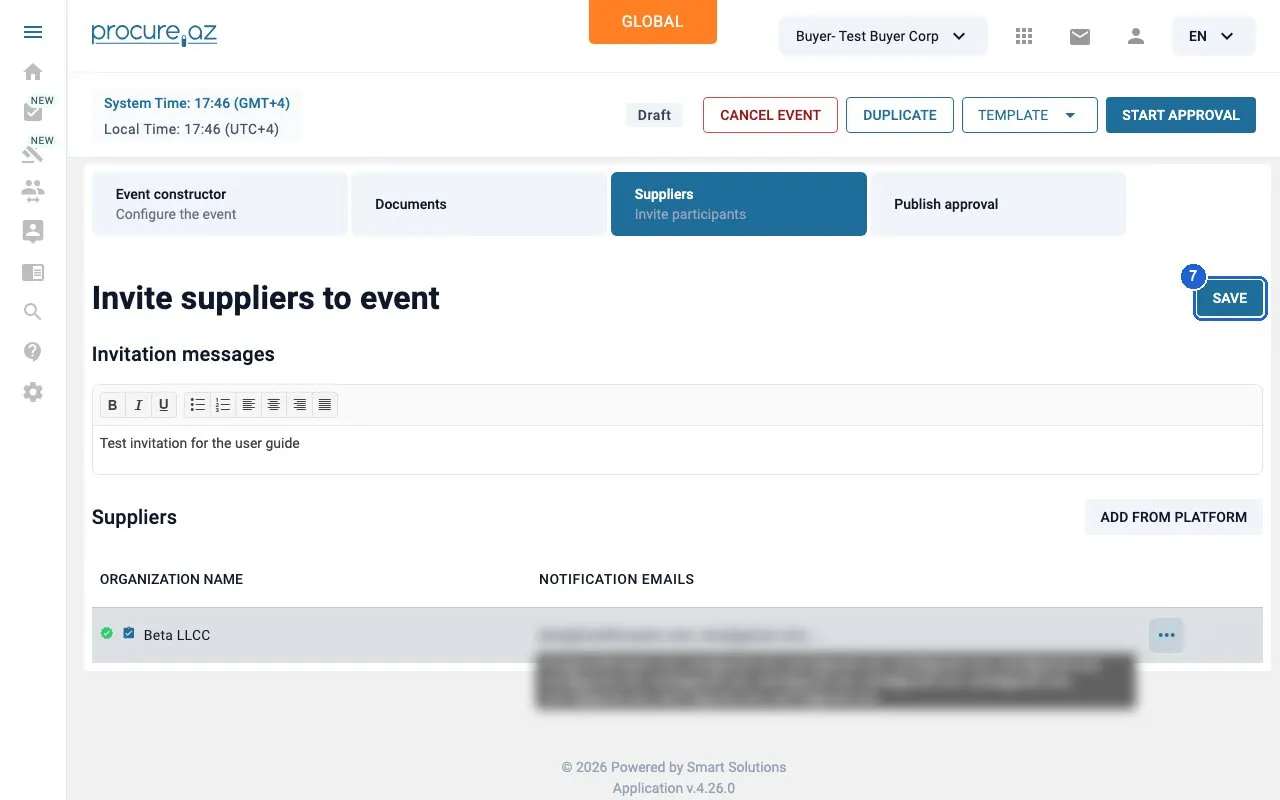
Step 7: Save the page — click “SAVE”.
Good to know
Section titled “Good to know”- Only suppliers on the Approved Vendor List with an active category can be invited. If a supplier is missing from the list, it is inactive - contact the AVL Manager.