

How do I blacklist a supplier organization?
Blacklisting is done from the supplier’s profile in the Pre-qualification module. It creates a Blacklisting event that goes to approval before the supplier is blacklisted.
-
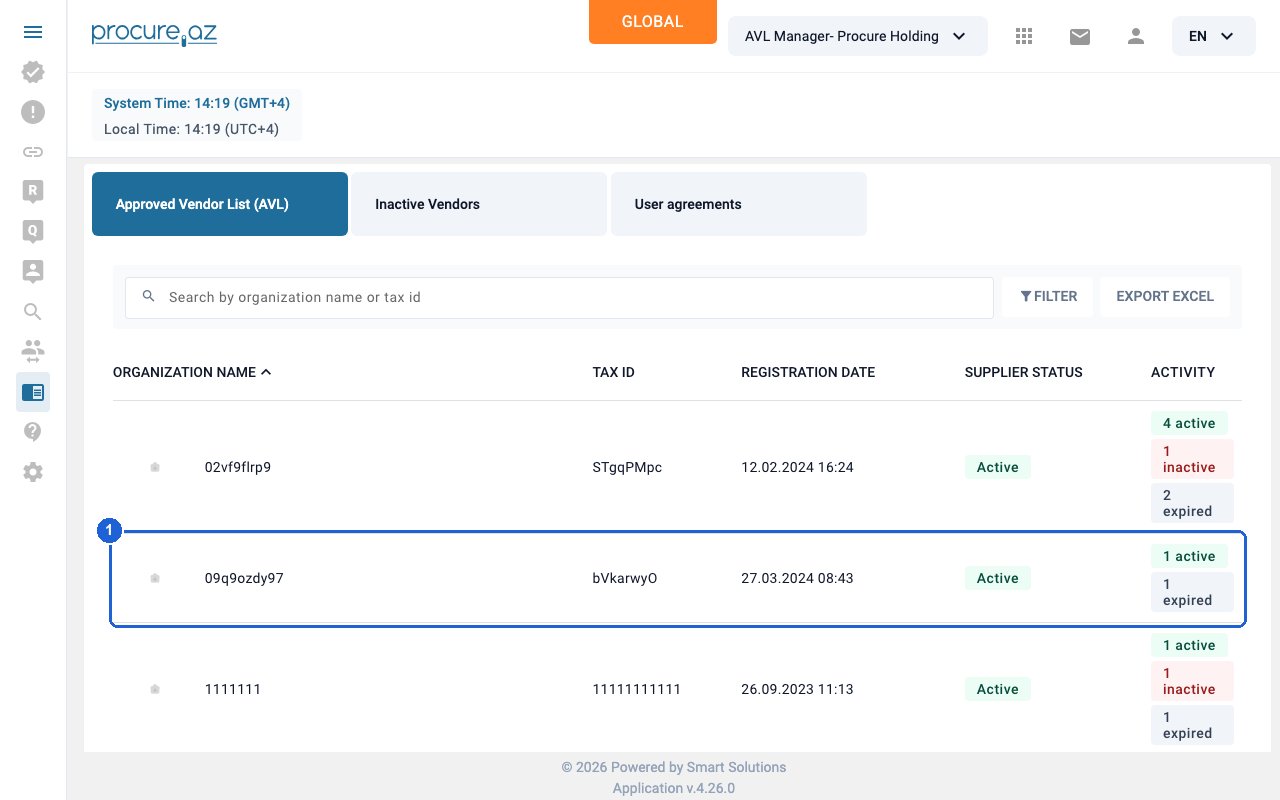
Open the supplier’s profile
Click the link for organization “09q9ozdy97” in the ORGANIZATION NAME column to open its profile.
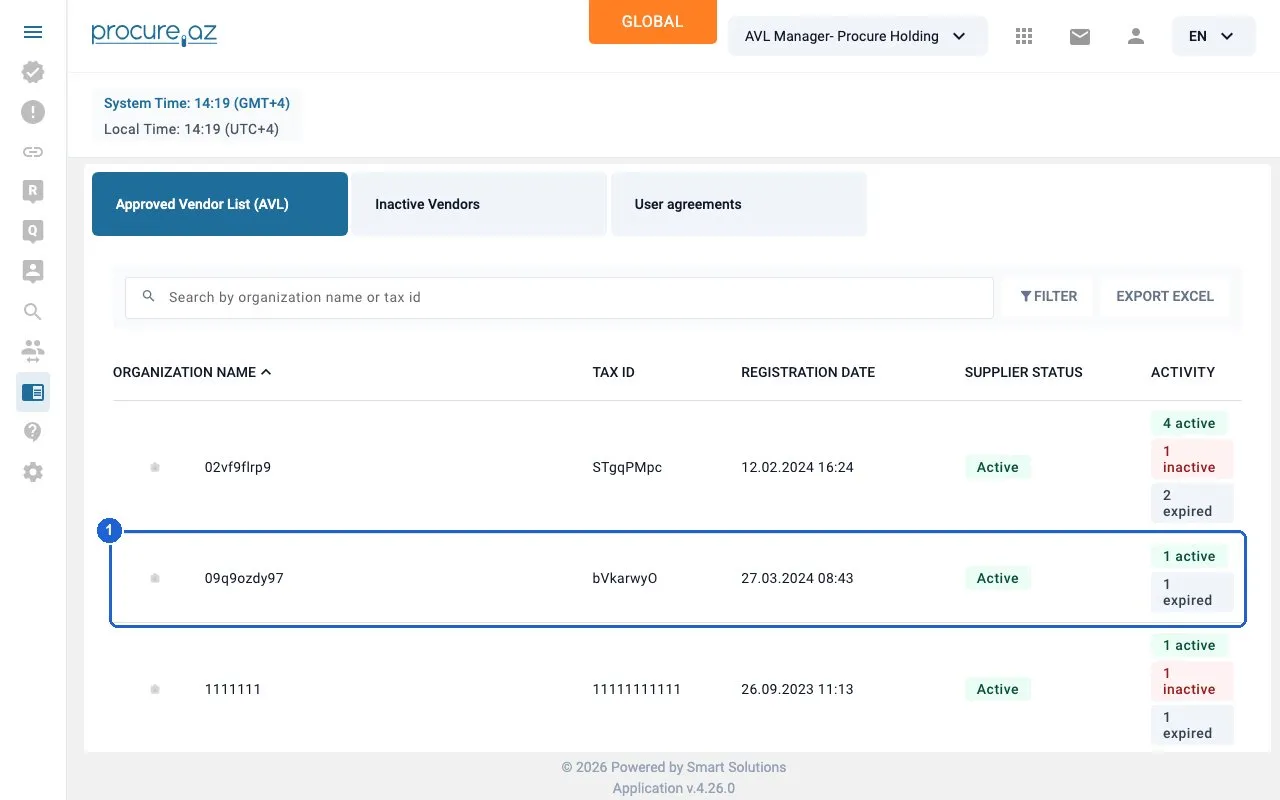
Step 1: Open the supplier's profile. -
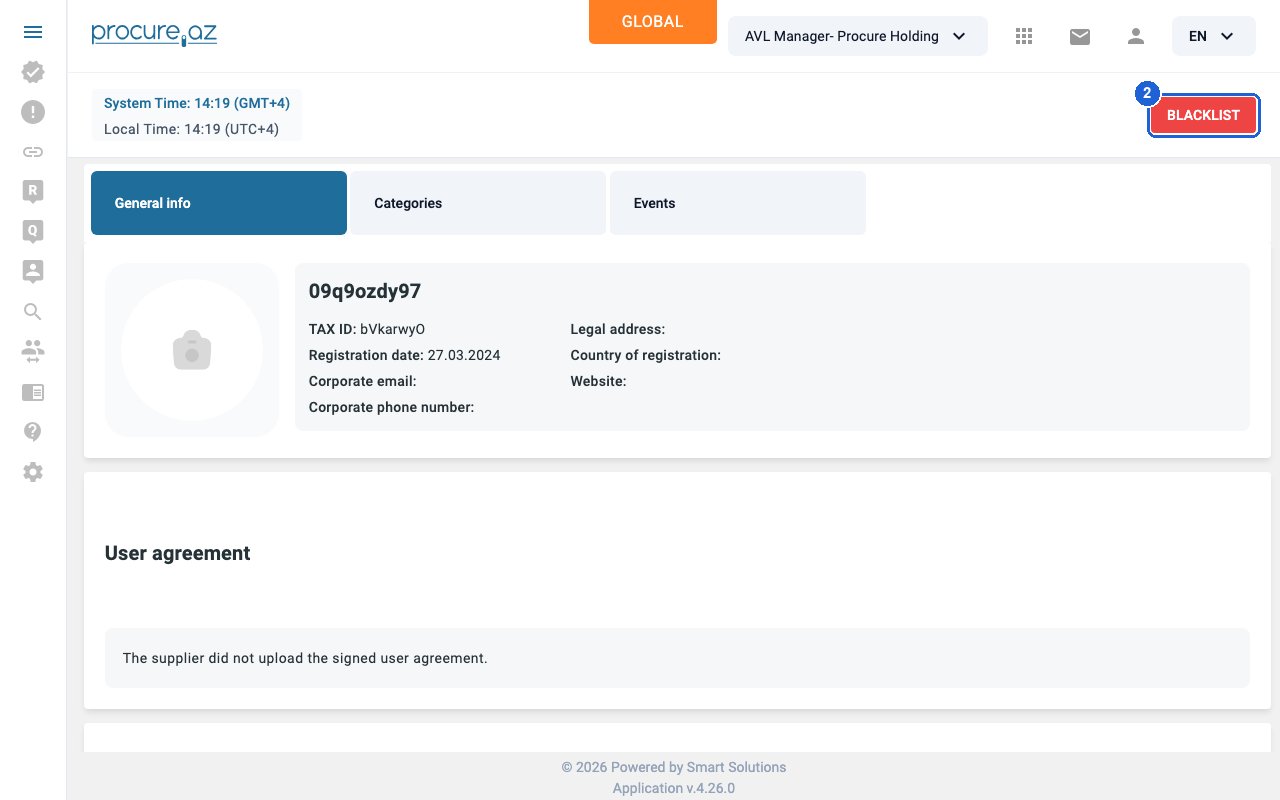
Click BLACKLIST button
Click the red BLACKLIST button at the top right of the supplier profile page.
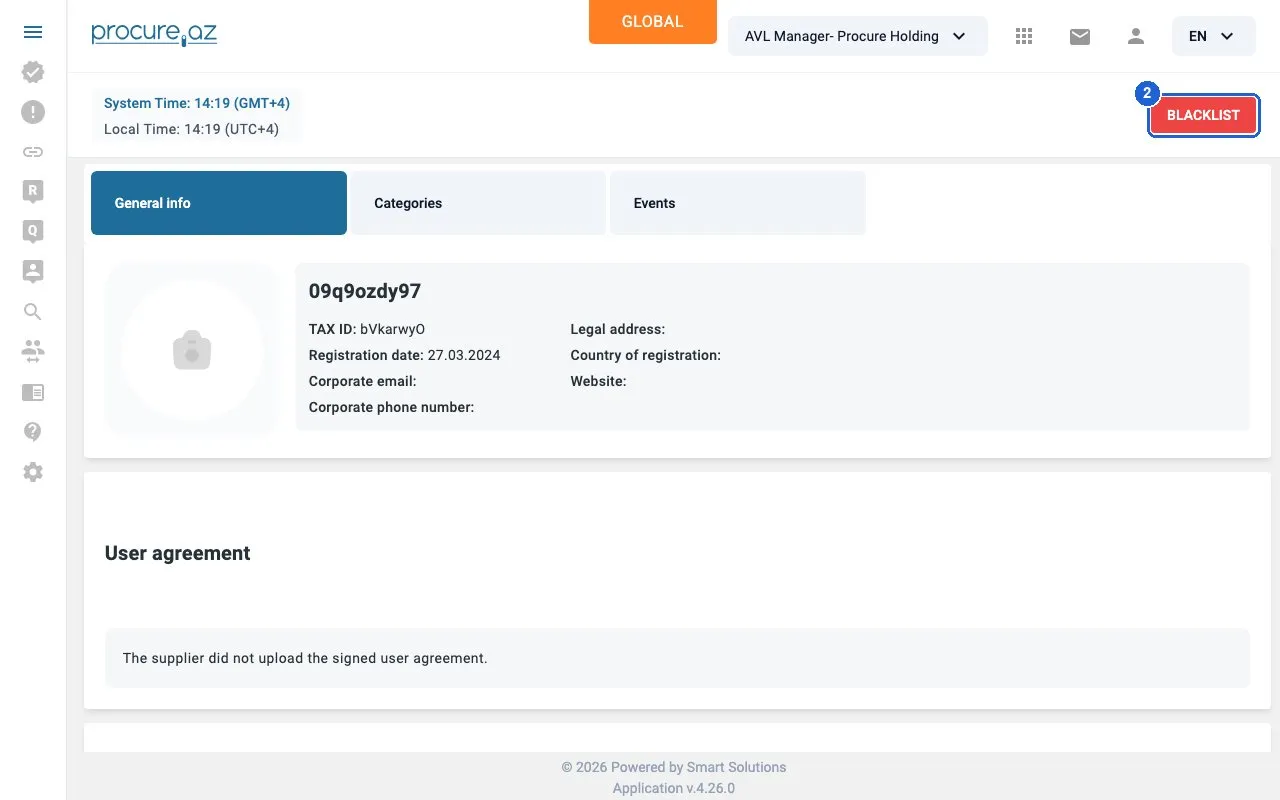
Step 2: Click BLACKLIST button — click “BLACKLIST”. -
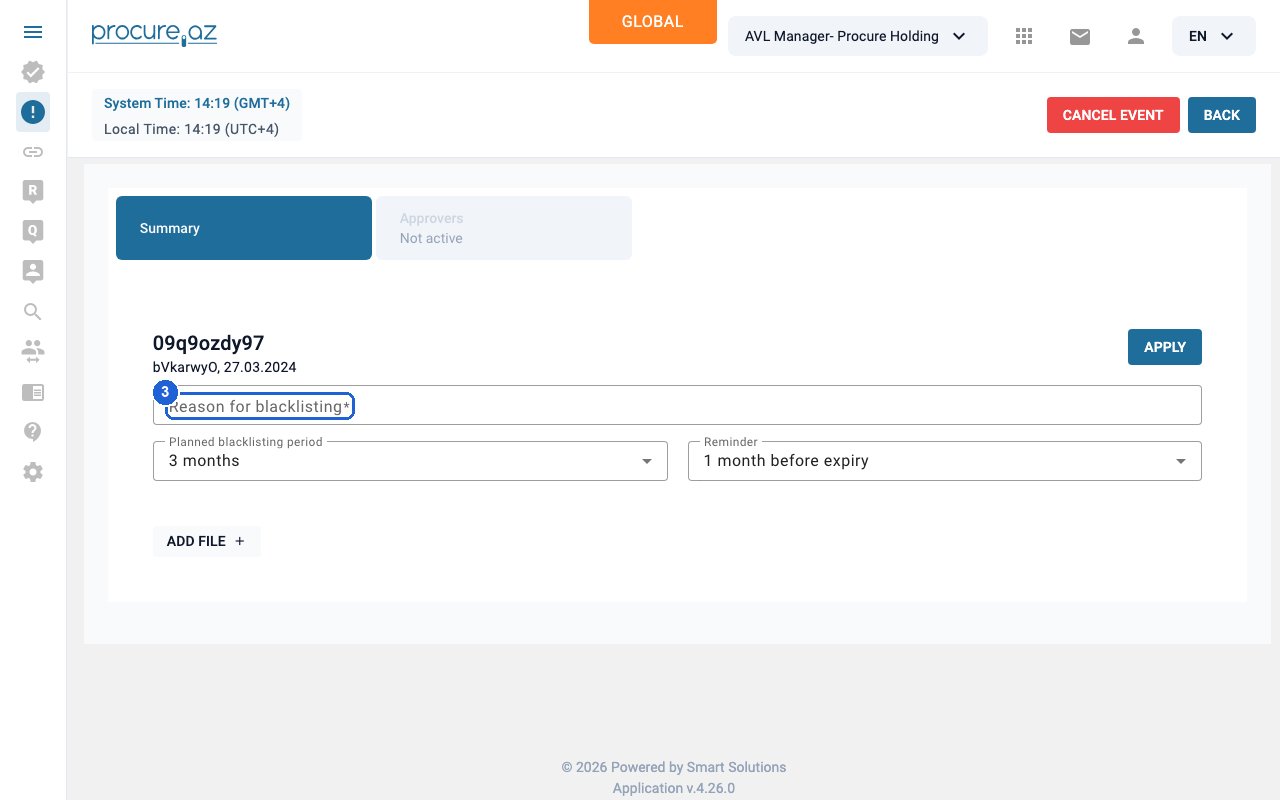
Enter the reason
In the “Reason for blacklisting” field, describe why the supplier is being blacklisted.
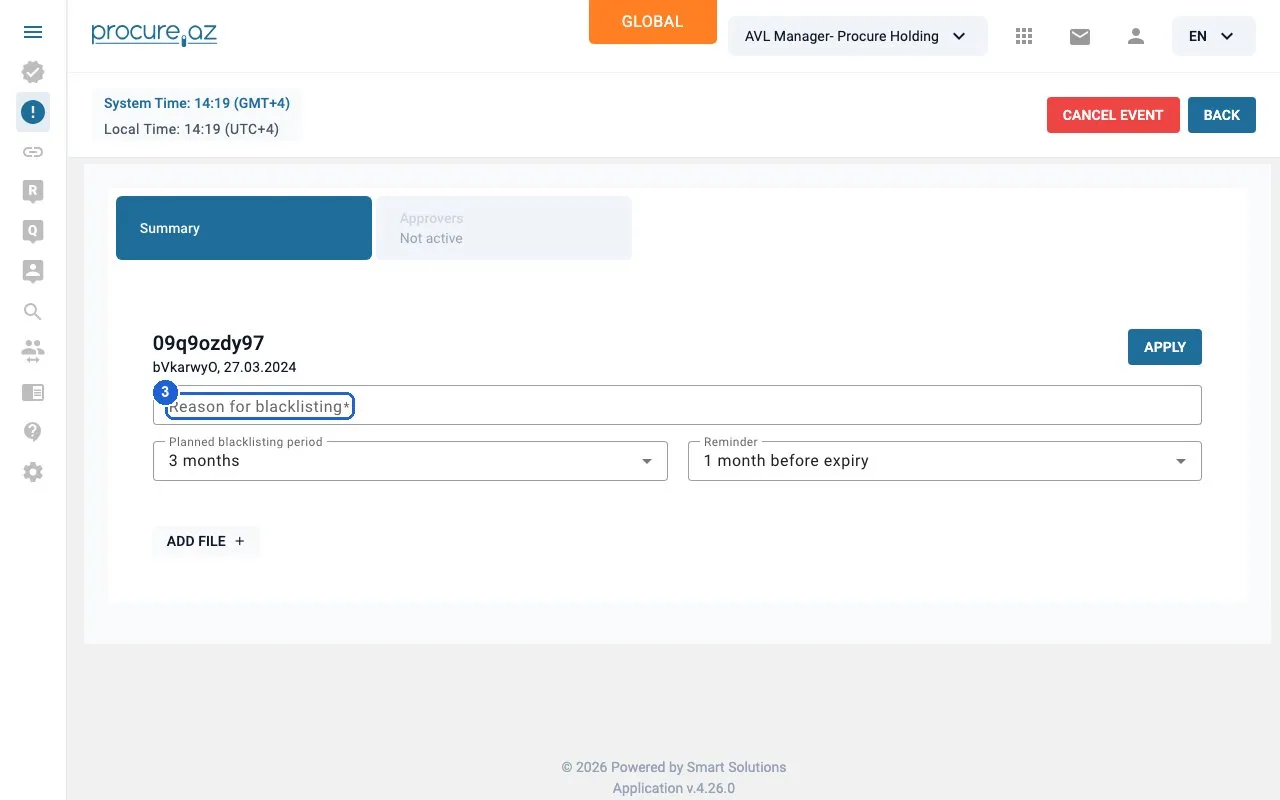
Step 3: Enter the reason — click “Reason for blacklisting”. -
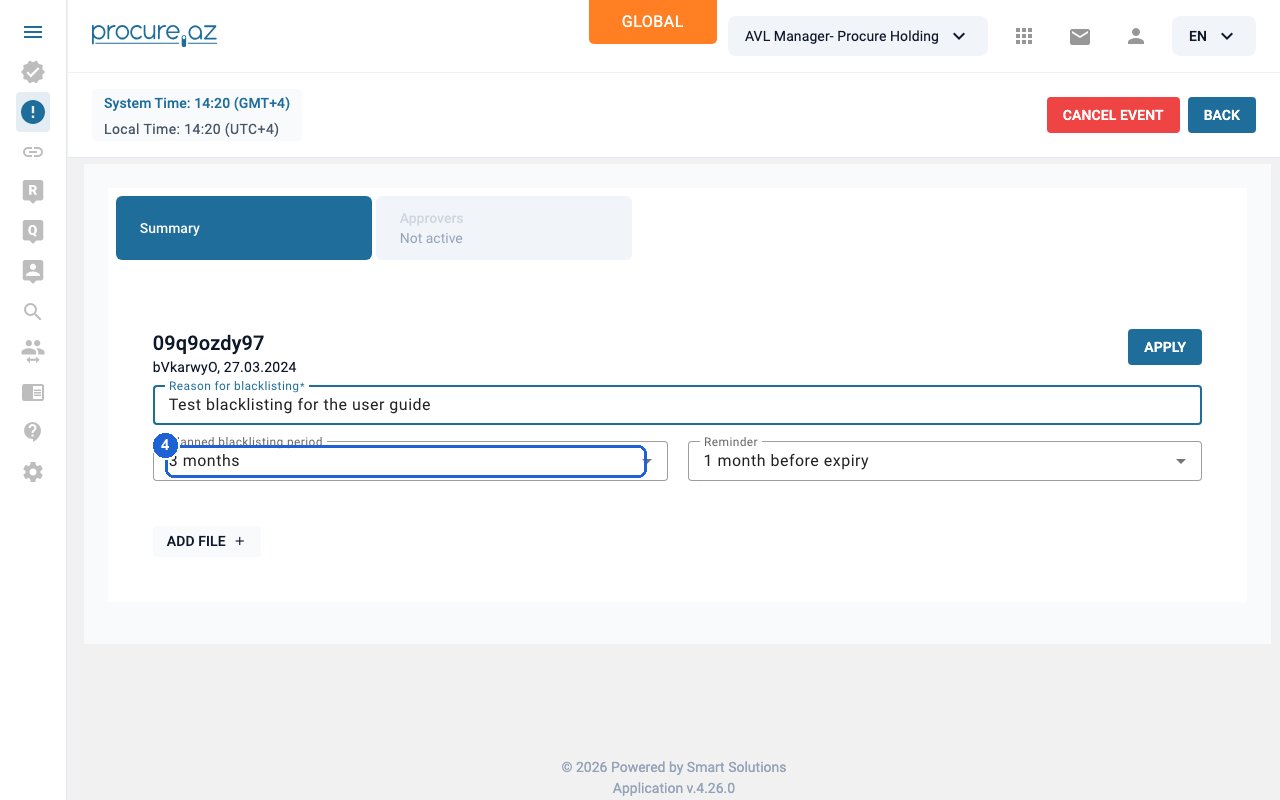
Choose the planned period
Open the “Planned blacklisting period” dropdown and pick the period, for example “6 months”.
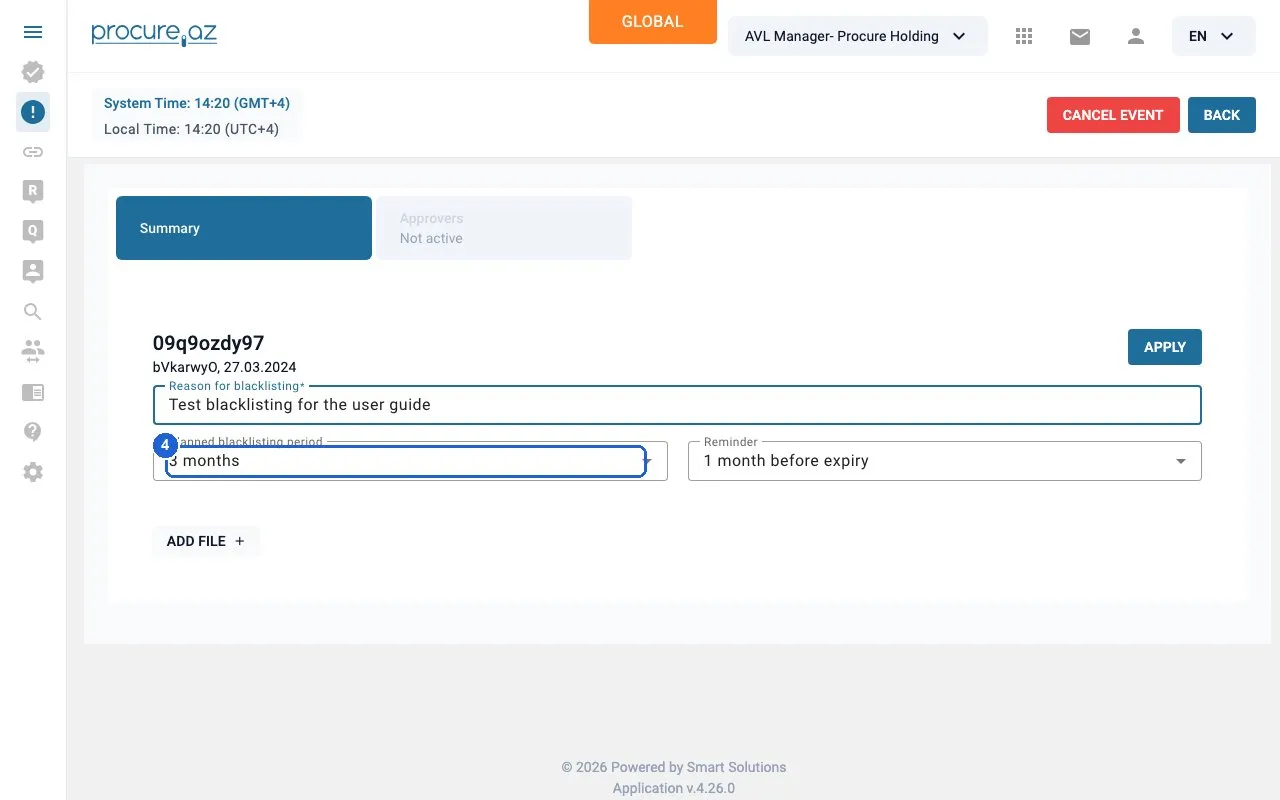
Step 4: Choose the planned period — click “3 months”. -
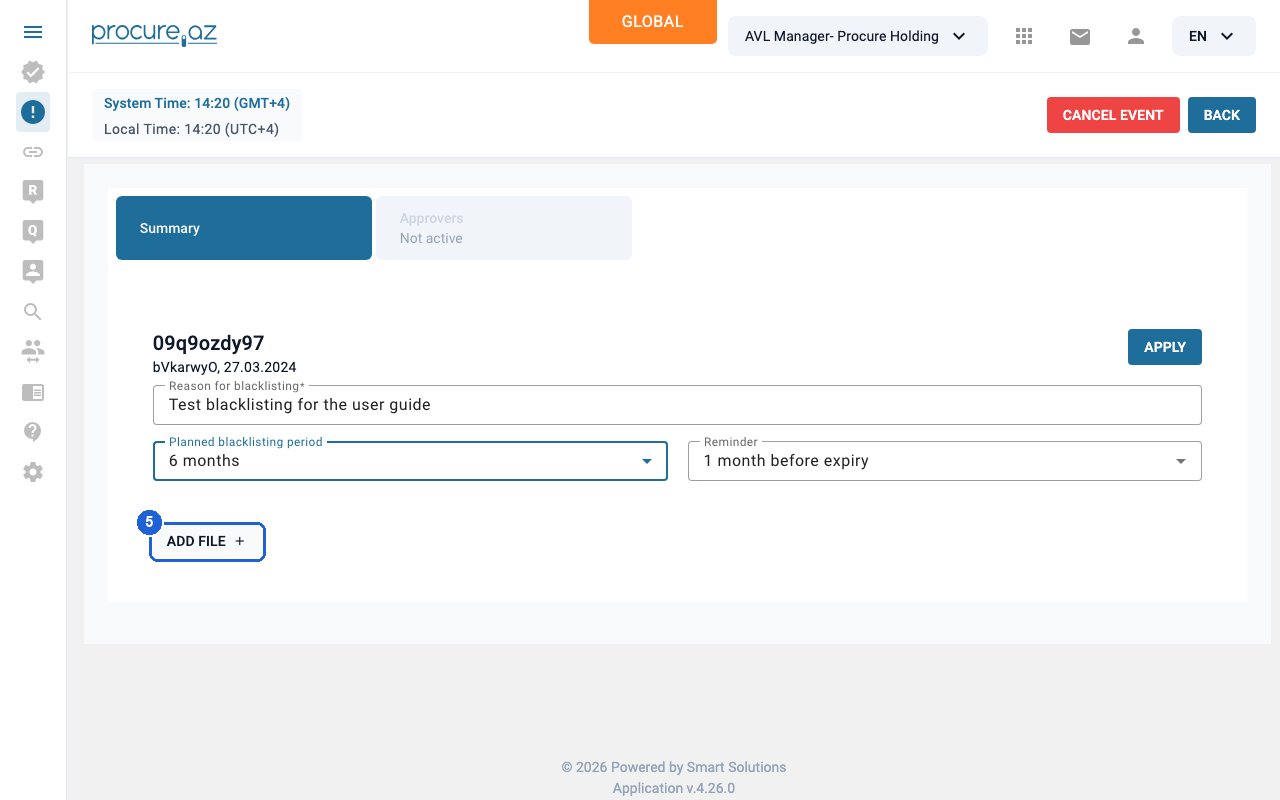
Attach supporting files (optional)
Click “ADD FILE +” to attach supporting documents, such as the evidence behind the decision.
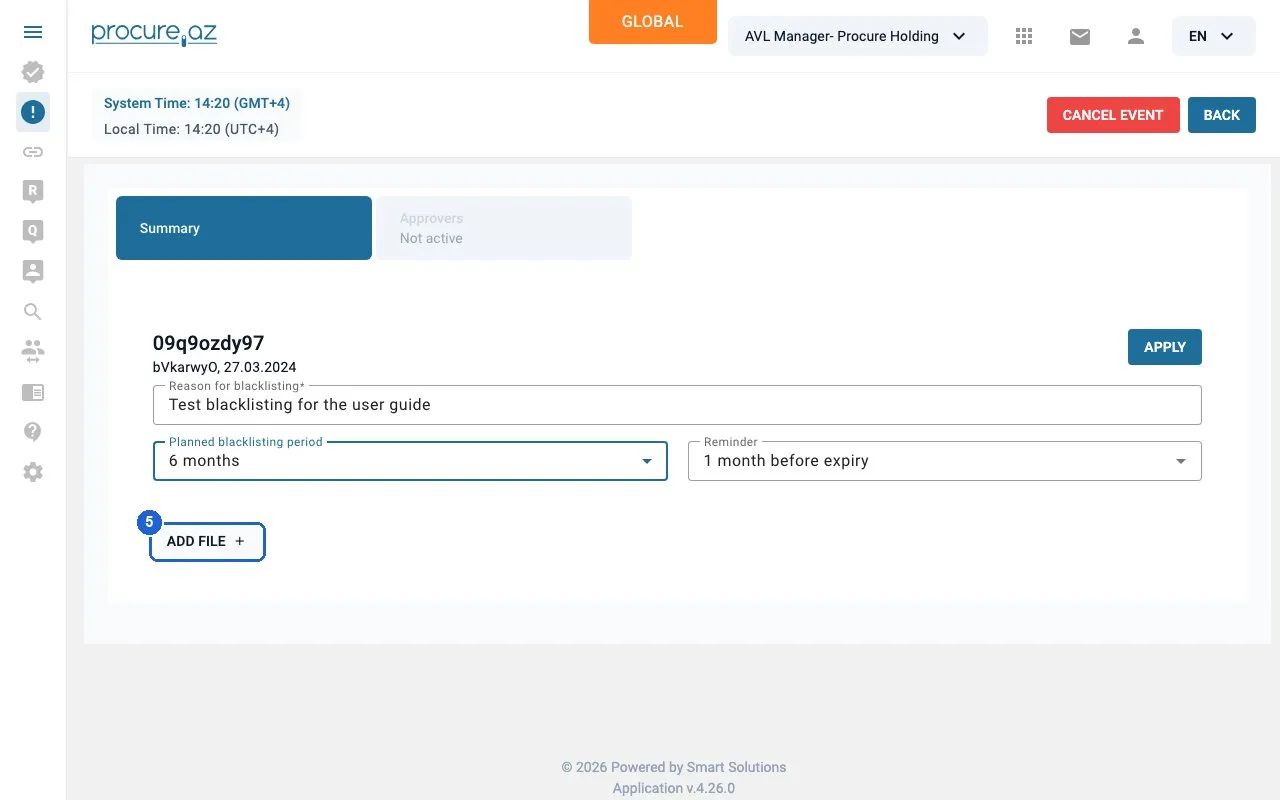
Step 5: Attach supporting files (optional) — click “ADD FILE add”. -
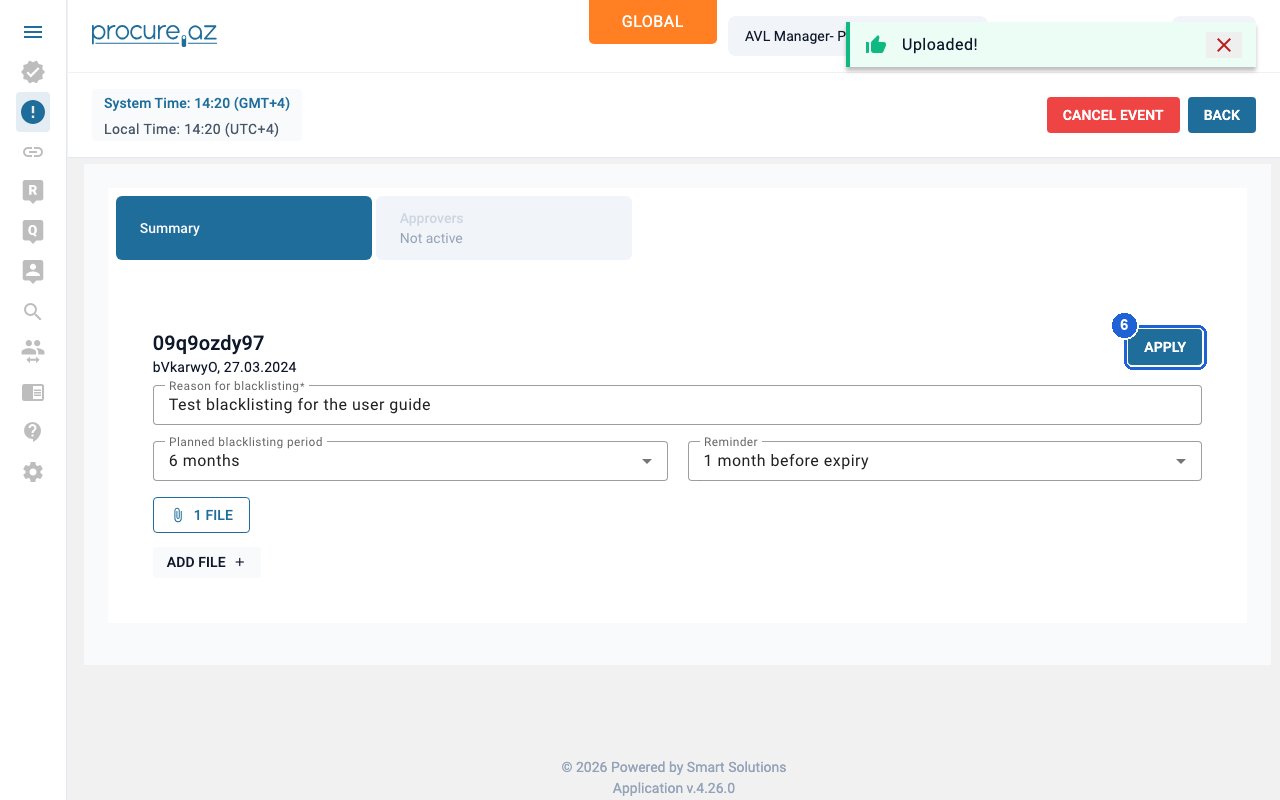
Apply and confirm
Click APPLY at the top right, then click YES in the confirmation dialog to submit the blacklisting event for approval.
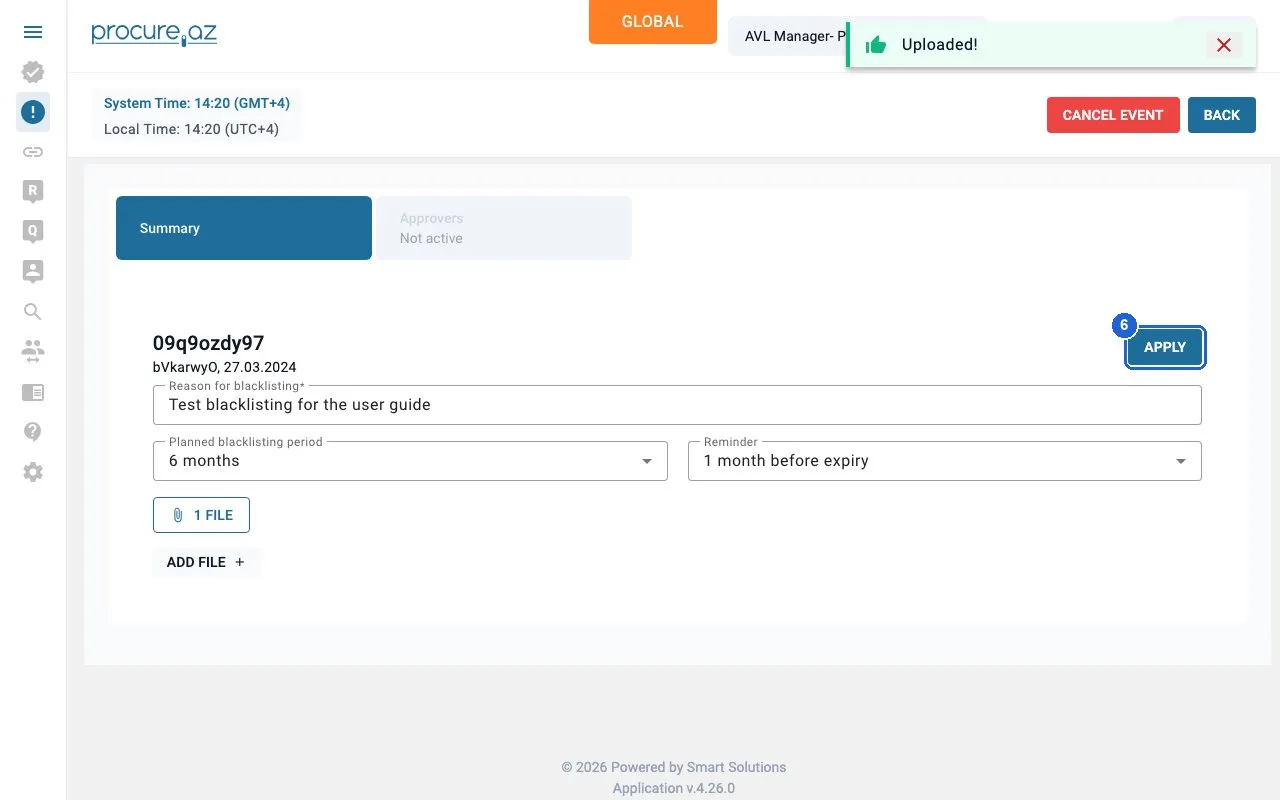
Step 6: Apply and confirm — click “APPLY”.
Good to know
Section titled “Good to know”- Only AVL Managers of an organization with blacklisting rights see the BLACKLIST button. On staging that is Procure Holding; Buyer, Procure, Procure Bank and Test Buyer Corp roles do not see it.
- If a blacklisting event already exists for the supplier, clicking BLACKLIST shows “Cannot create event, Blacklisting event for supplier with id … already exists”. Open the existing event from the Blacklisting page instead.
- After you confirm, the event appears on the left-sidebar Blacklisting page with status “Pending approvers selection”. The supplier is blacklisted only after the approvers vote.
- The planned period can be changed (e.g. 3 or 6 months); a reminder is sent before it expires.
- Blacklisting is not the same as deactivating a supplier (setting all its categories inactive in Supplier Management).