

How can I create commercial criteria?
Online version: https://help.allmaz.az/guides/sourcing/commercial-criteria/
Commercial criteria are added on the Configure step of a draft event: ADD COMMERCIAL CRITERIA, then set the scores, the total estimated amount and the list of goods or services (BOQ), and save.
-
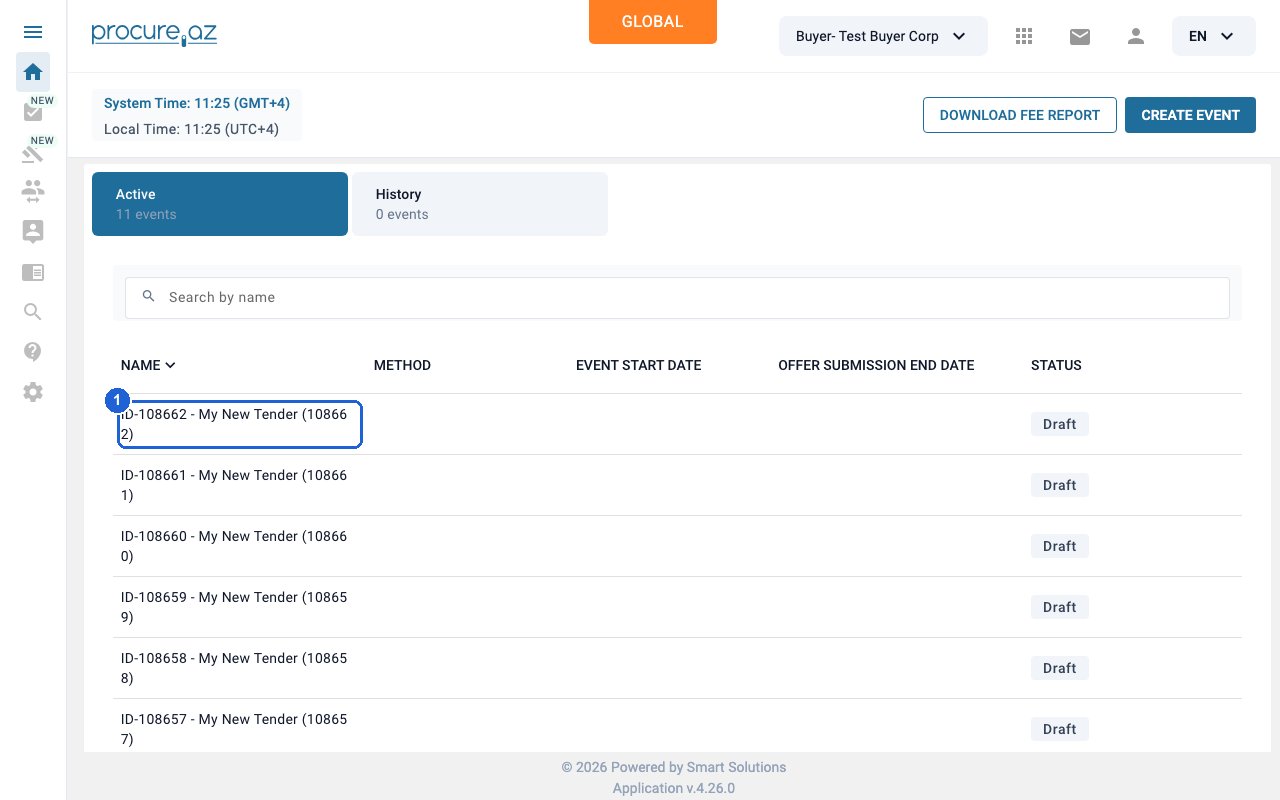
Open the draft event
On the Sourcing dashboard, click the draft event (here “ID-108662”) to open it in the Event constructor.
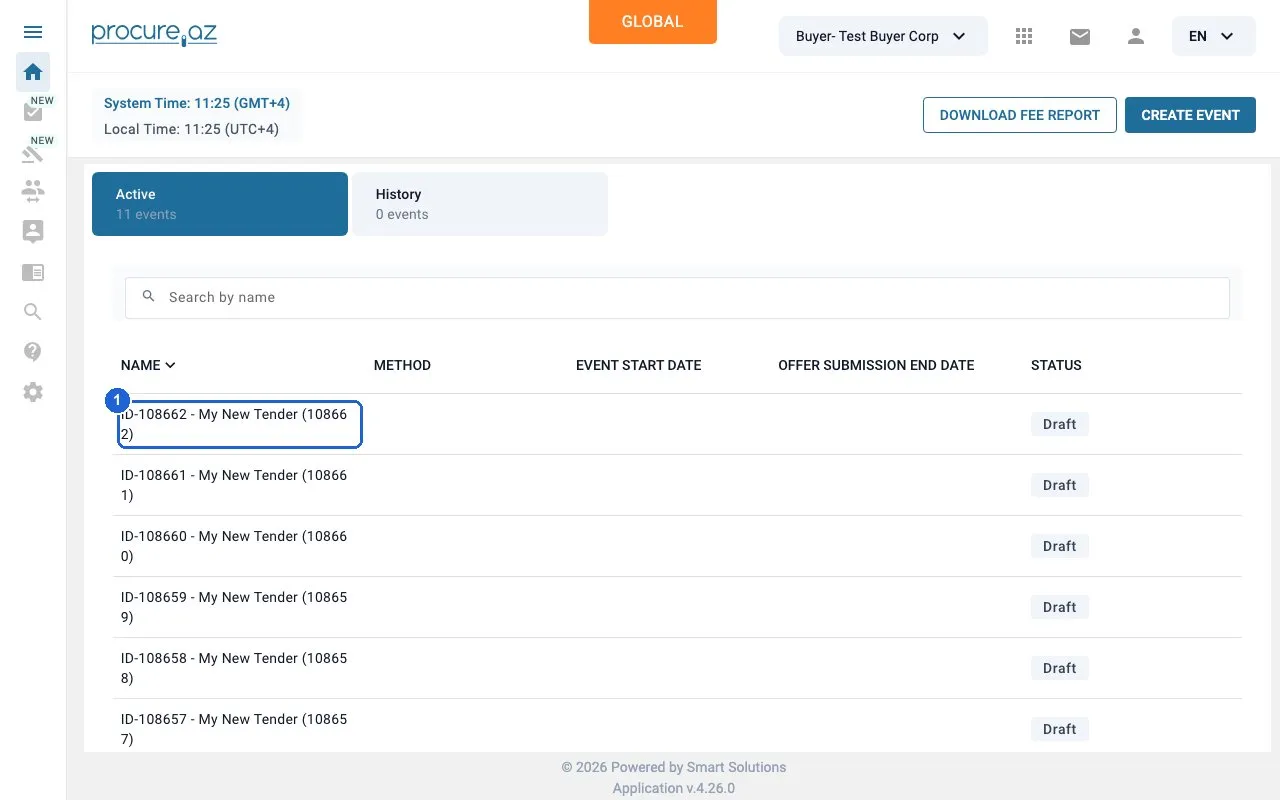
Step 1: Open the draft event — click “ID-108662 - My New Tender (108662)”. -
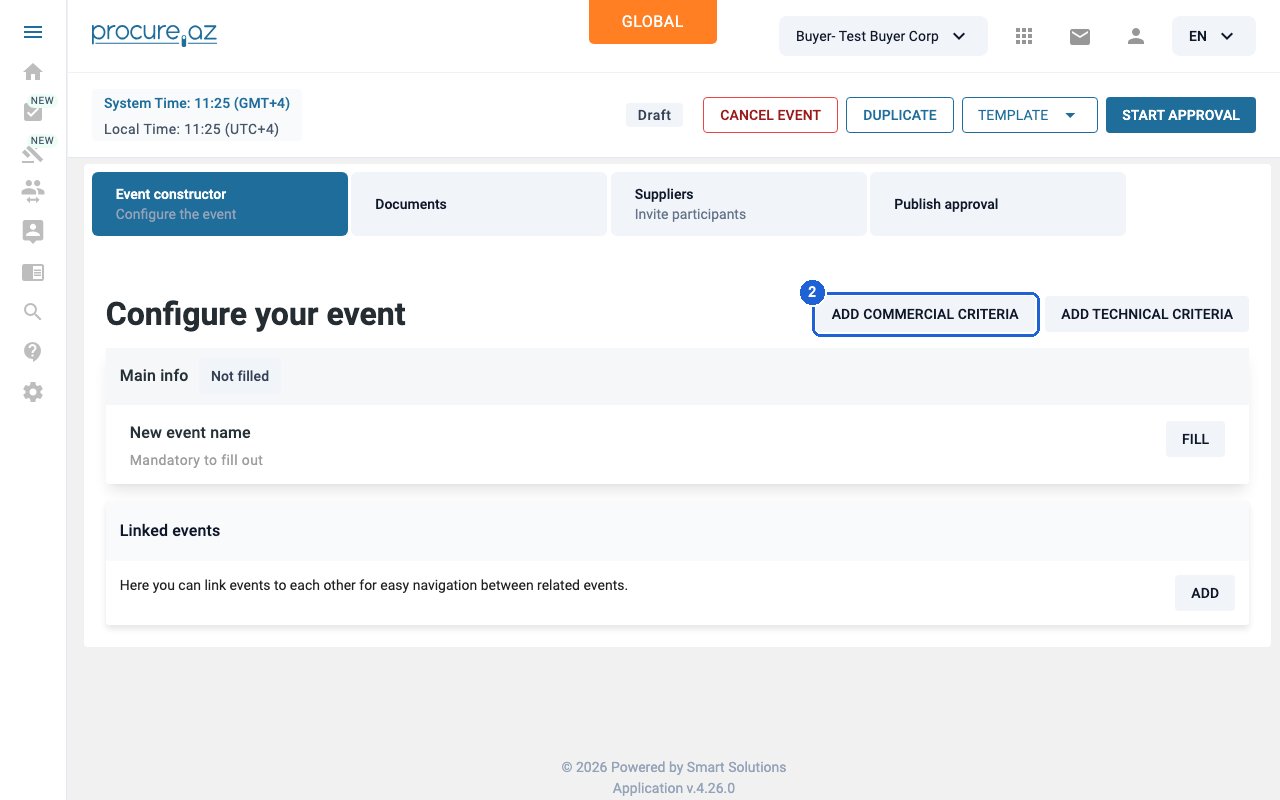
Add commercial criteria
On the Configure step, click ADD COMMERCIAL CRITERIA at the top right. A “Commercial criteria” card (“Add the list of requested goods or services”) is added to the event.
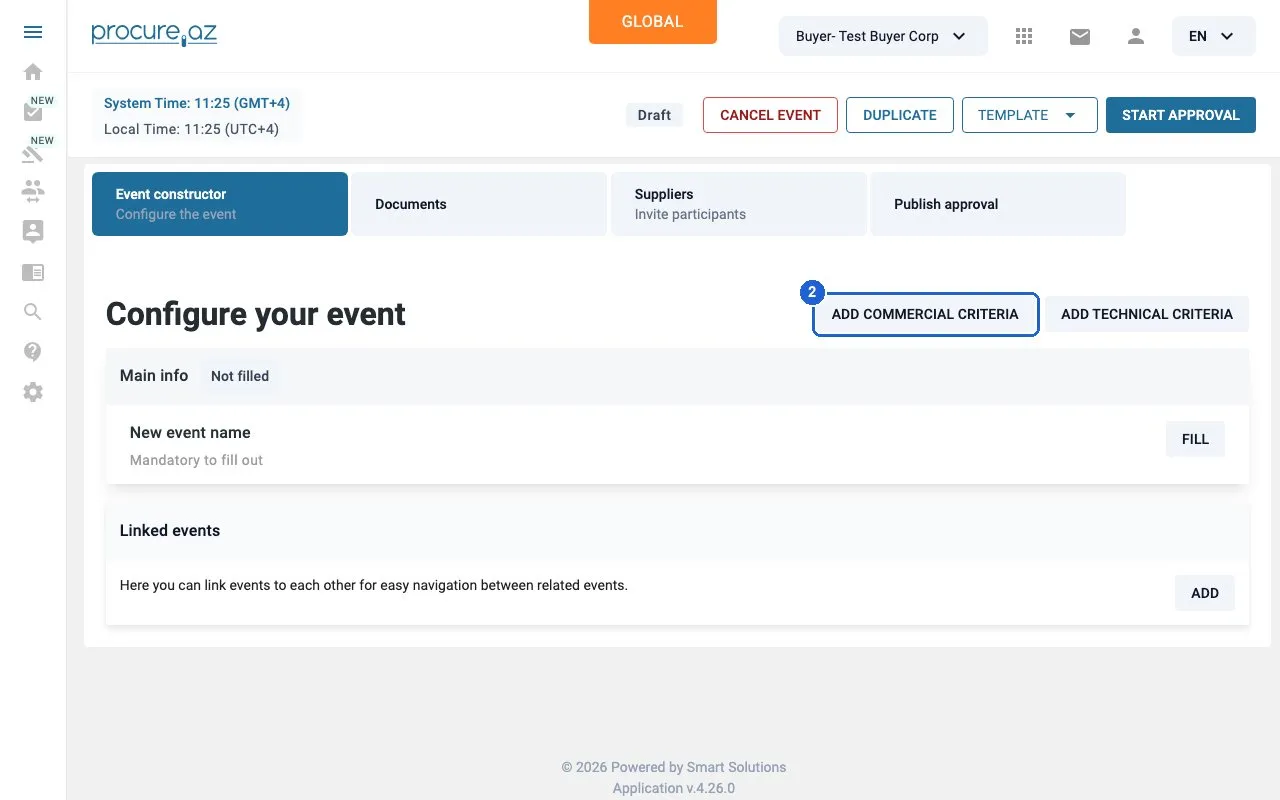
Step 2: Add commercial criteria — click “ADD COMMERCIAL CRITERIA”. -
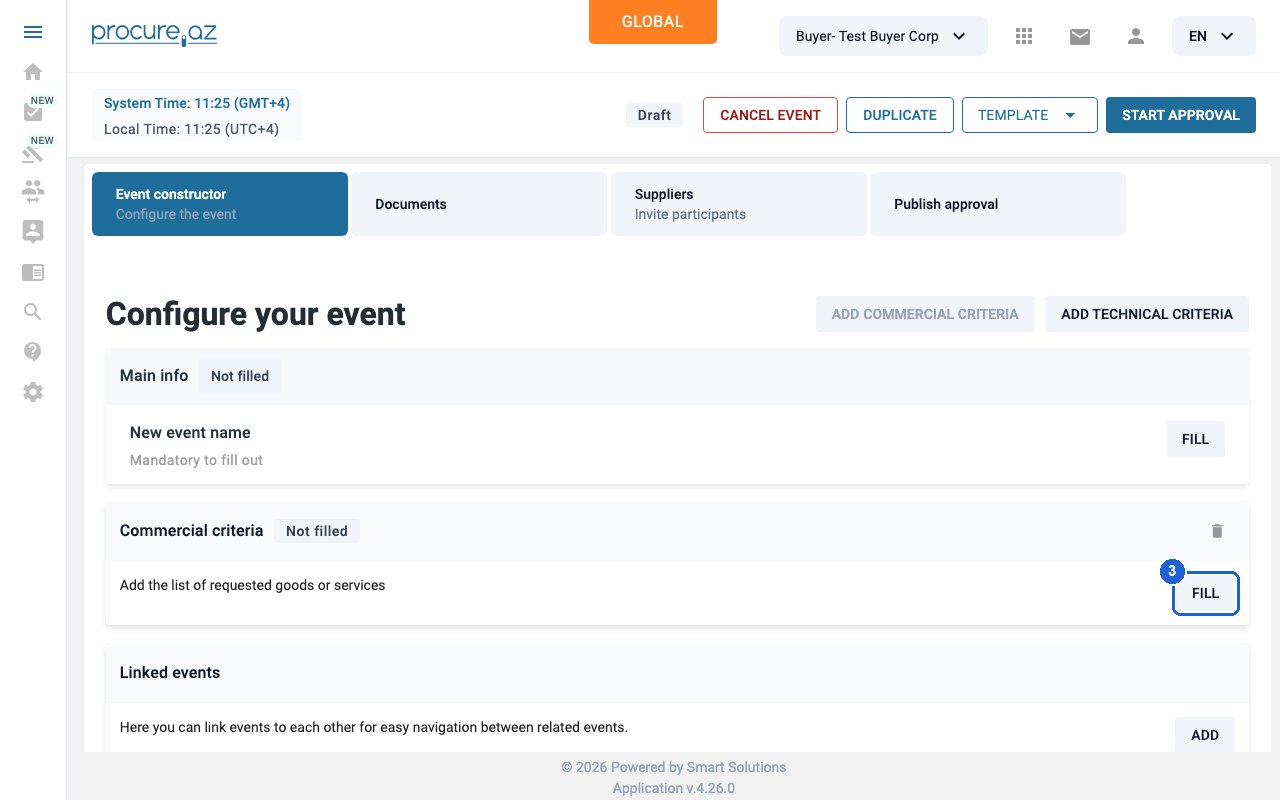
Open the commercial criteria
Click FILL on the Commercial criteria card. Take care: the first FILL on the page belongs to Main info.
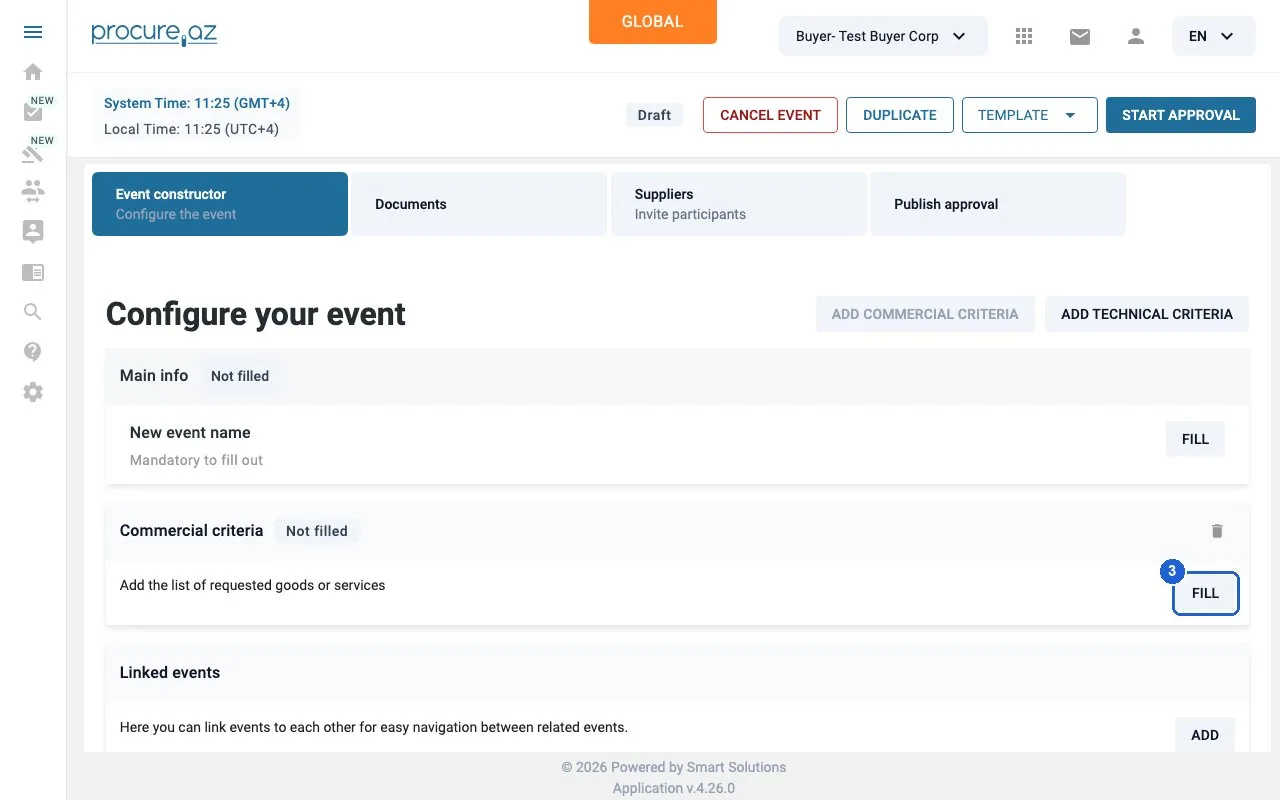
Step 3: Open the commercial criteria — click “FILL”. -
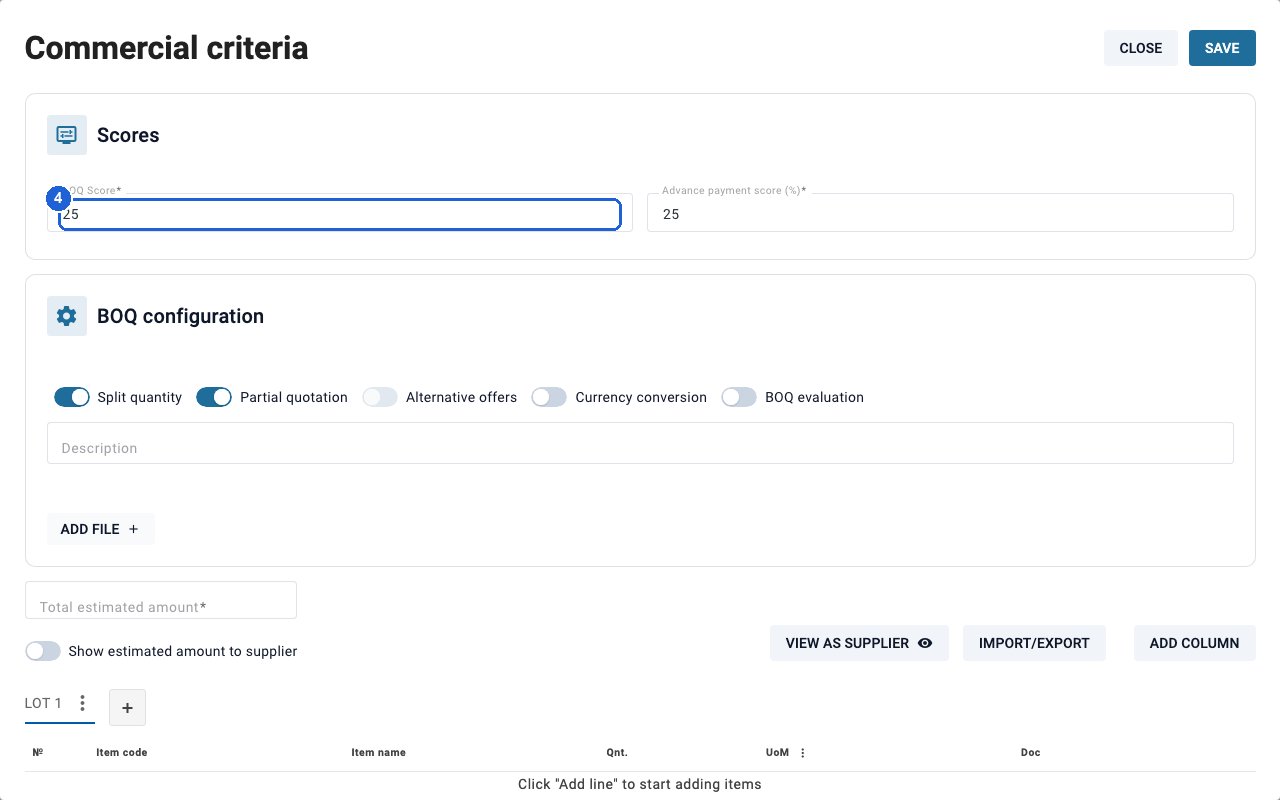
Check the scores
Under Scores, set BOQ Score* and, if suppliers may ask for an advance payment, Advance payment score (%). Here the suggested values are kept.
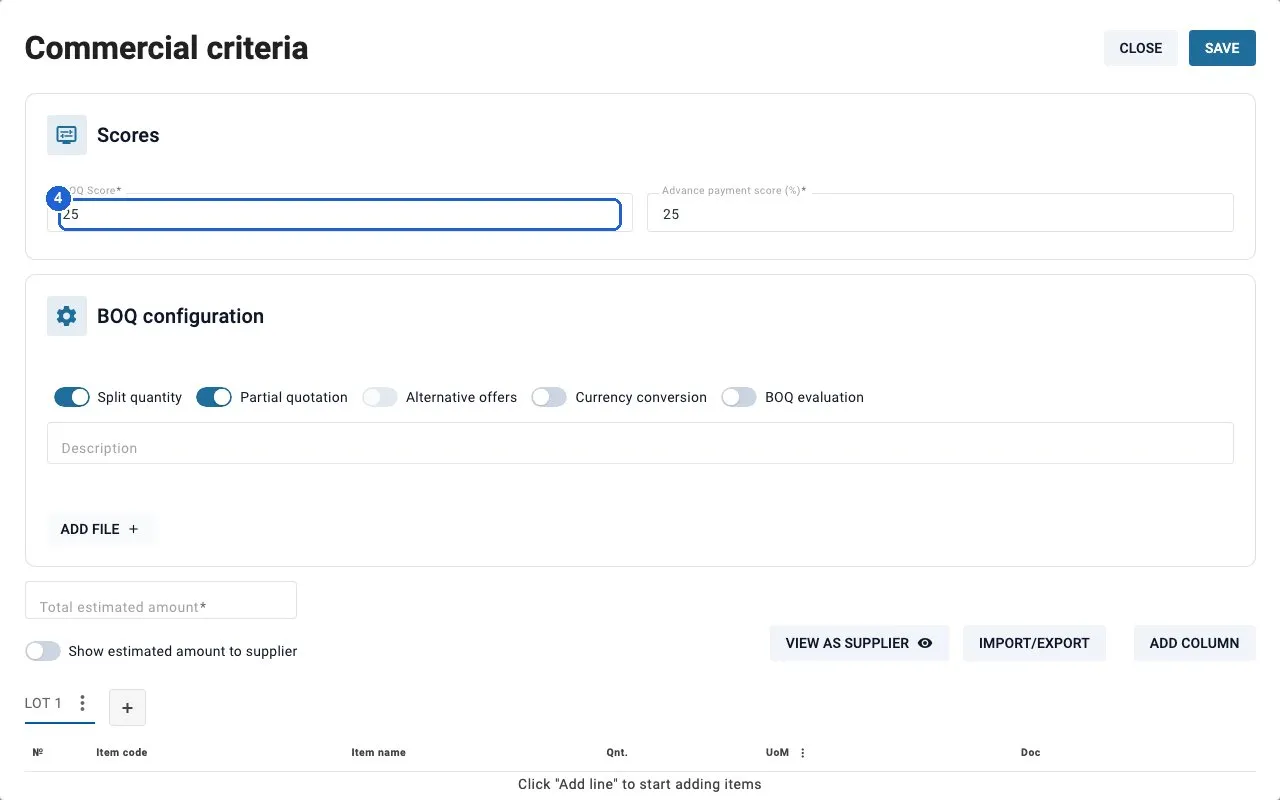
Step 4: Check the scores. -
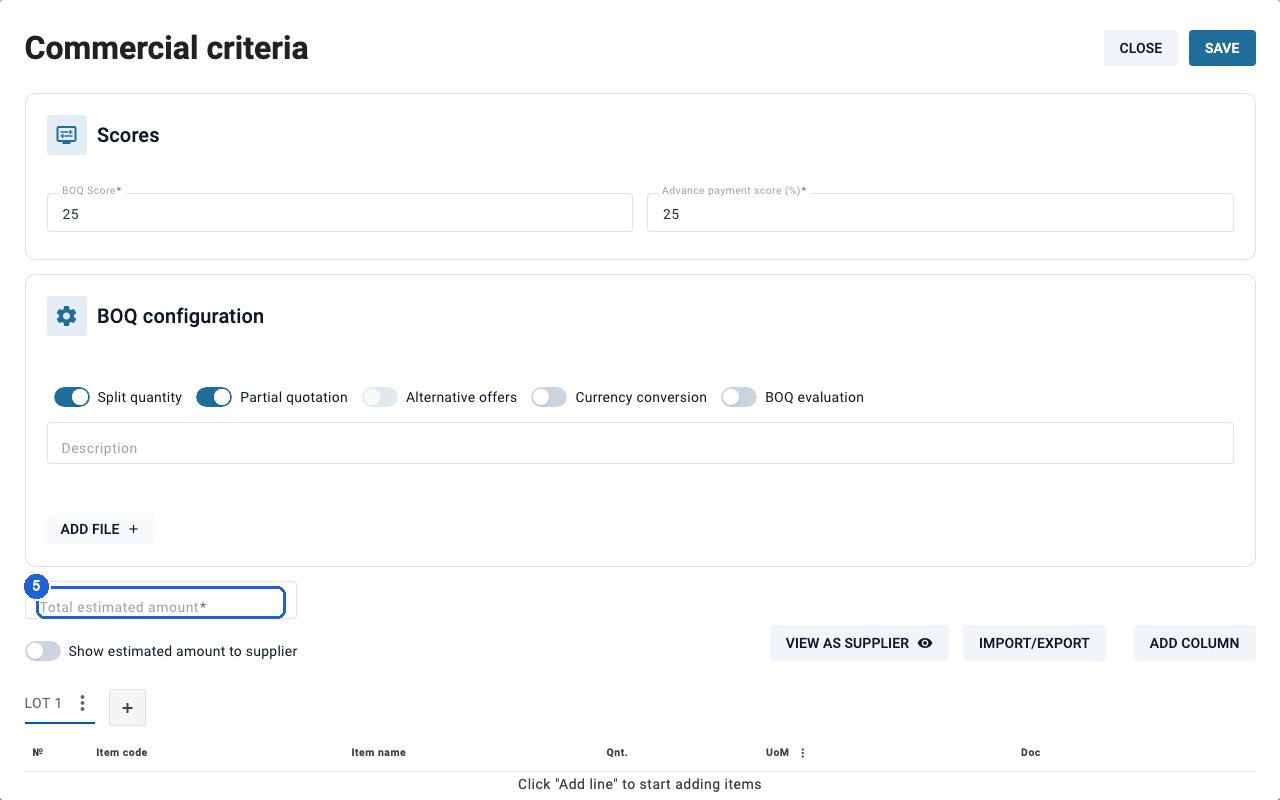
Enter the estimated amount
Type the Total estimated amount* of the purchase (here 1000). Turn on “Show estimated amount to supplier” if suppliers should see it.
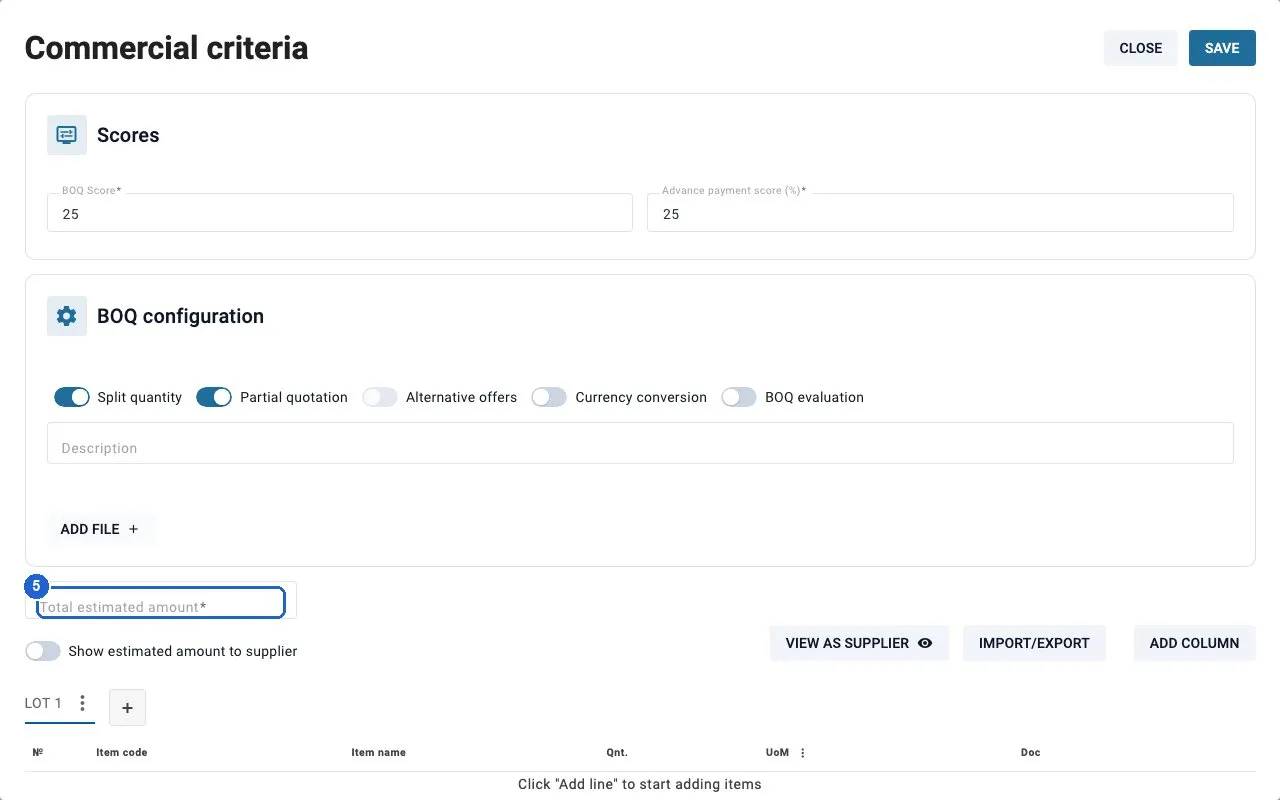
Step 5: Enter the estimated amount. -
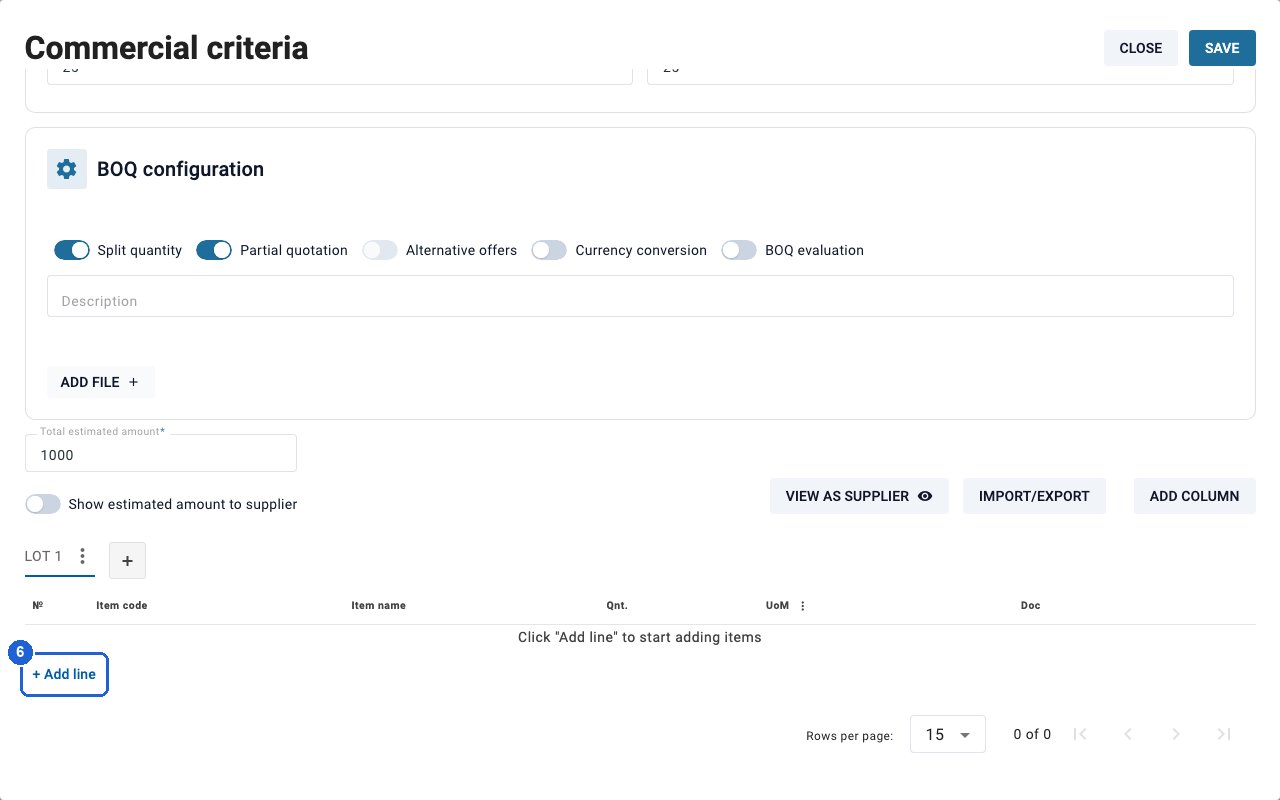
Add a line
Scroll down to the LOT 1 table and click “+ Add line” under it.
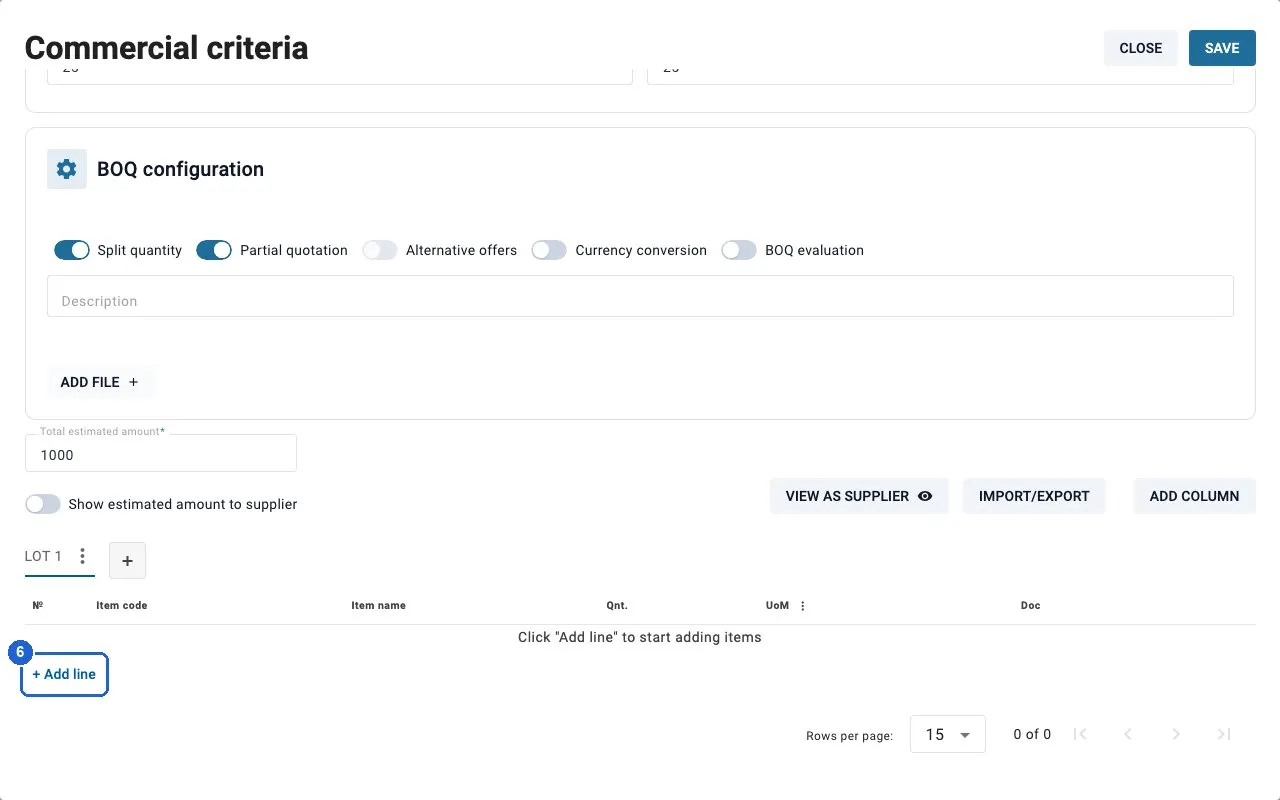
Step 6: Add a line — click “+ Add line”. -
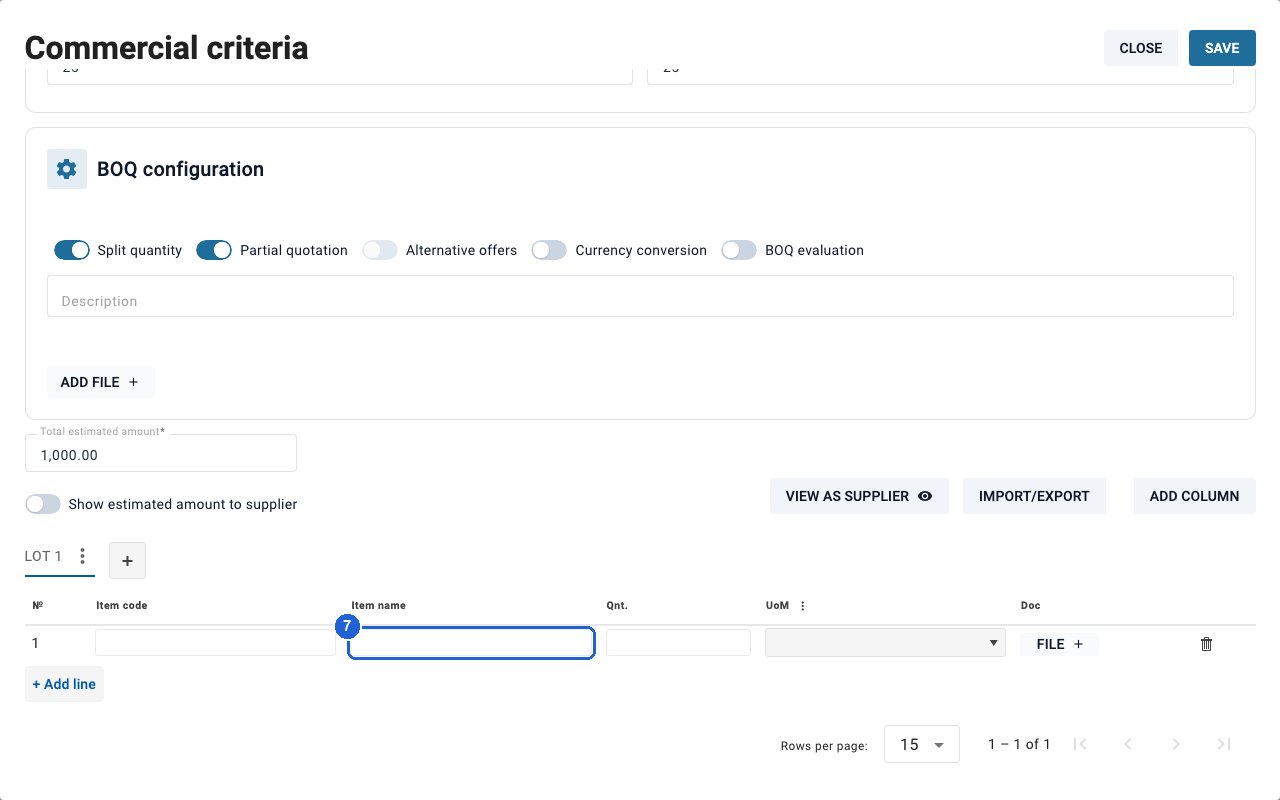
Name the item
In the new line, type the Item name (here “Test item”). Item code is optional.
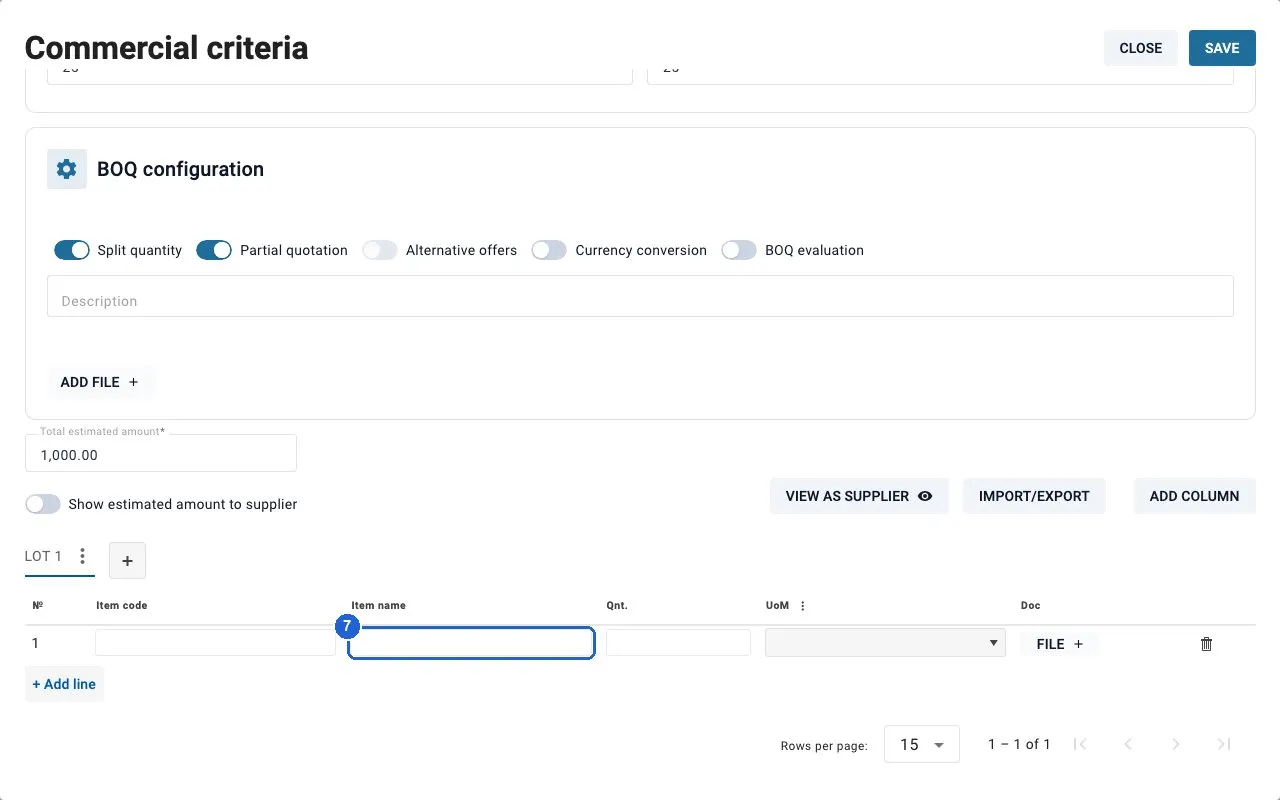
Step 7: Name the item. -
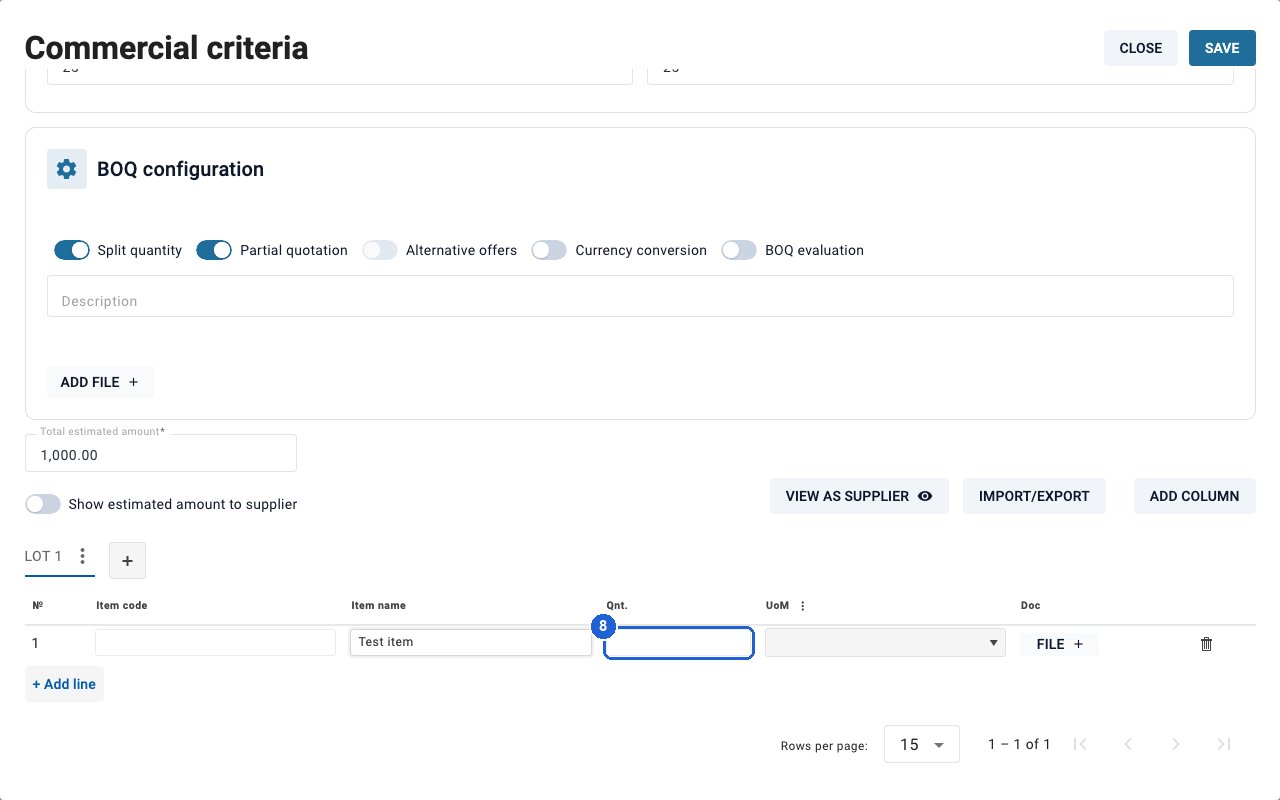
Enter the quantity
Type the quantity in Qnt. (here 1).
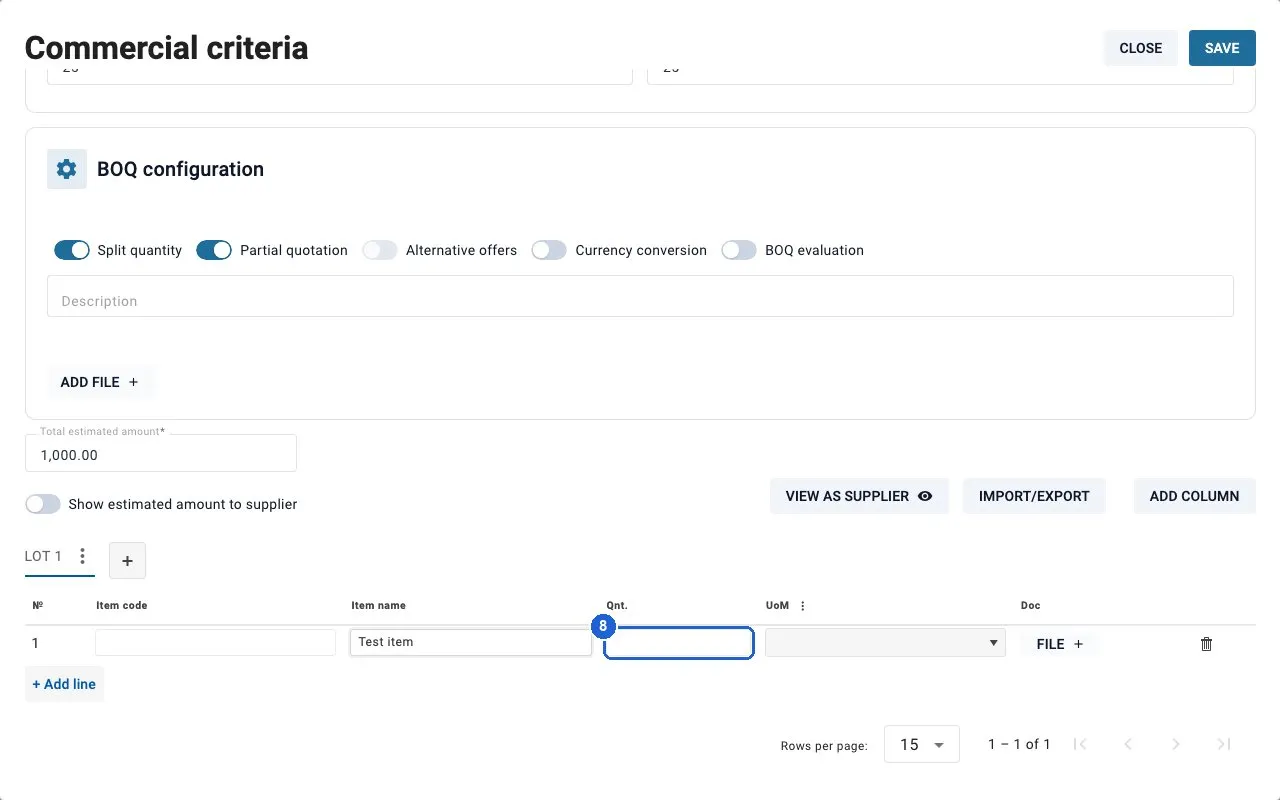
Step 8: Enter the quantity. -
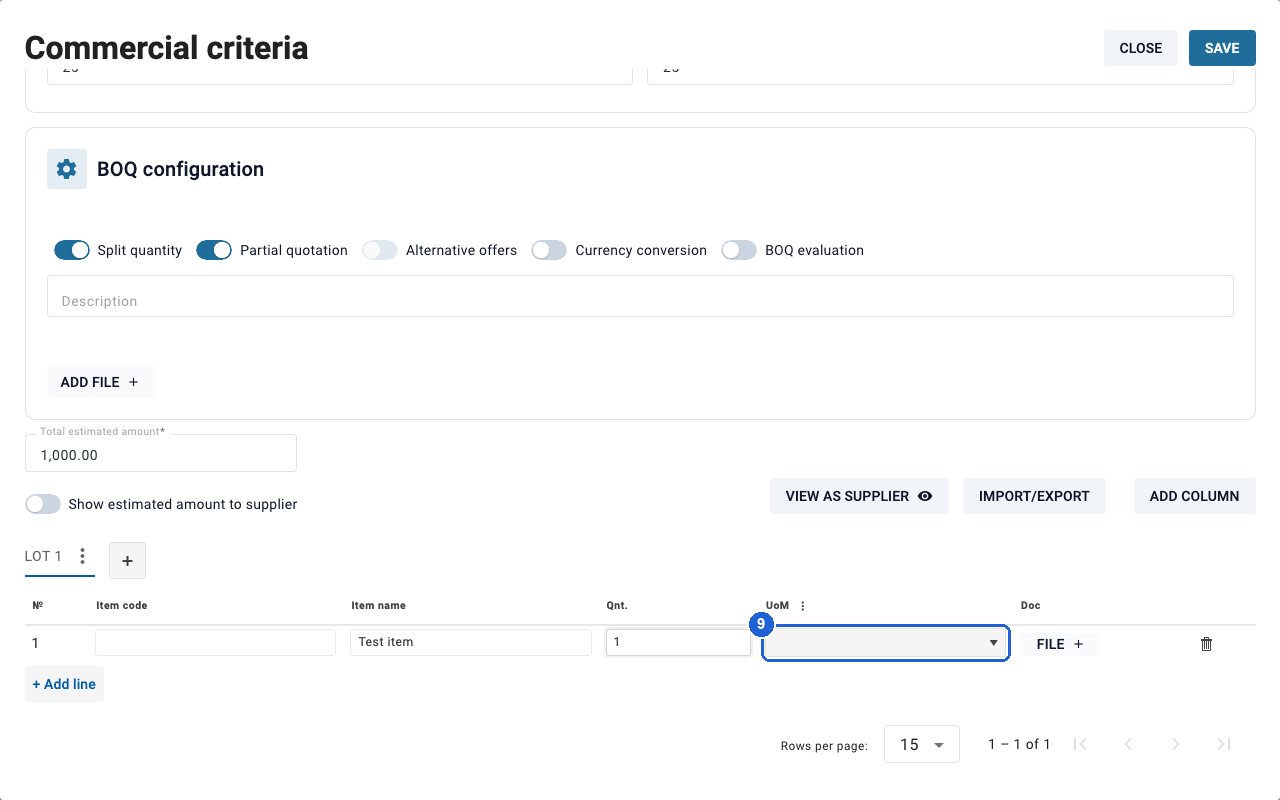
Choose the unit
Open the UoM list and pick the unit of measurement.
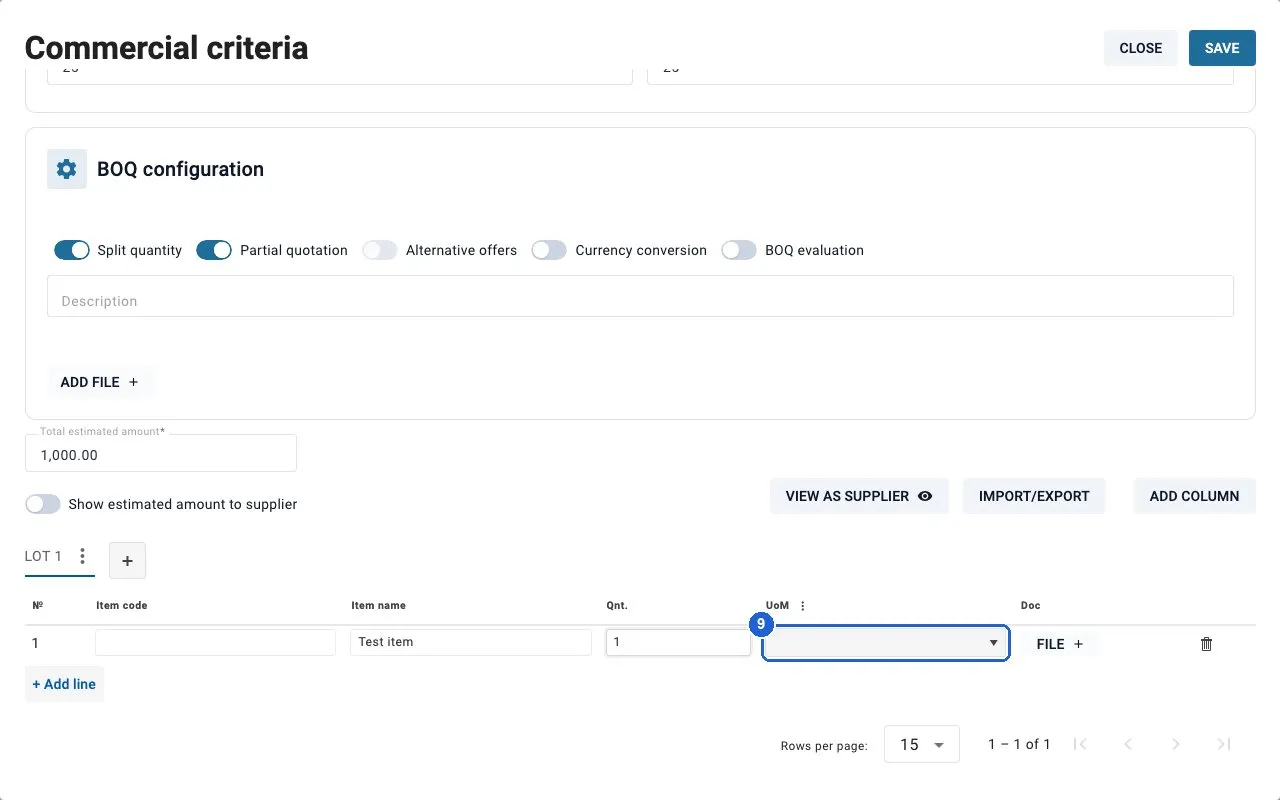
Step 9: Choose the unit. -
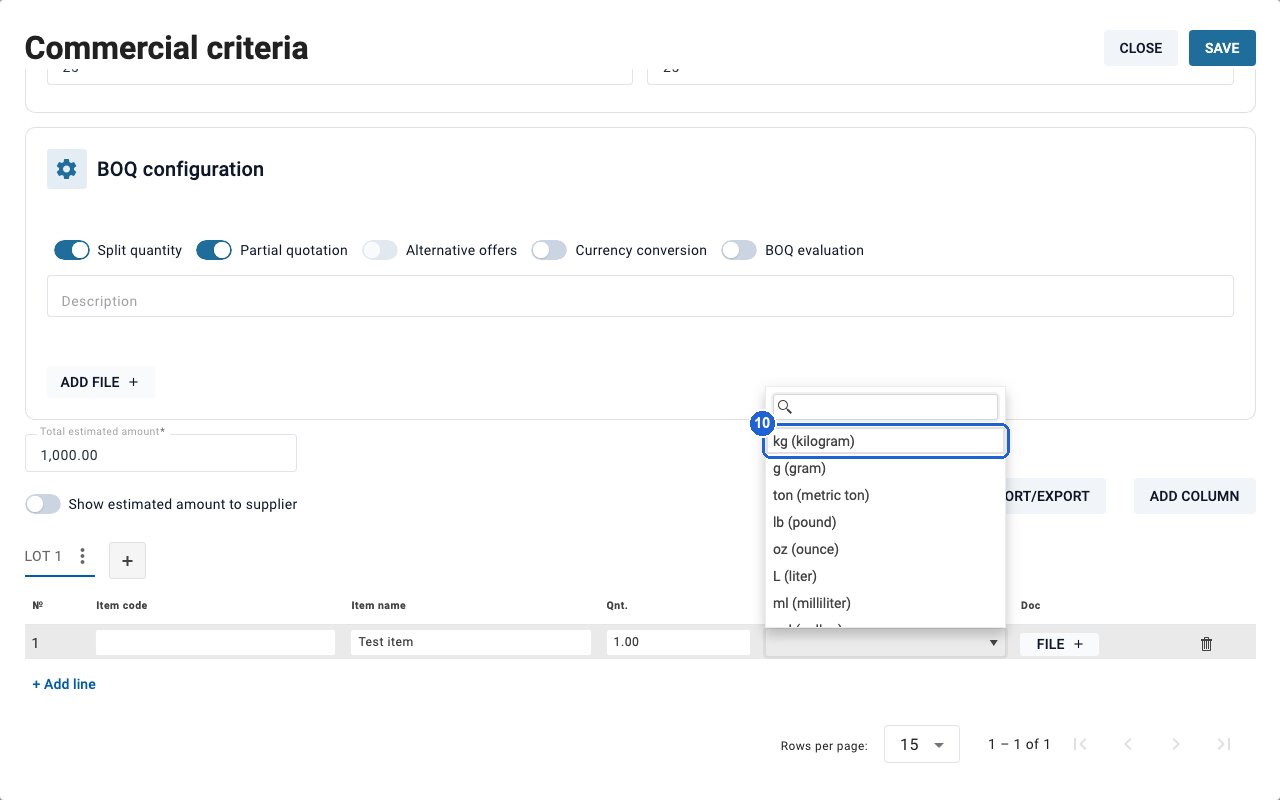
Pick the unit
Click the unit (here “kg (kilogram)”). Repeat steps 6-10 for every item you buy.
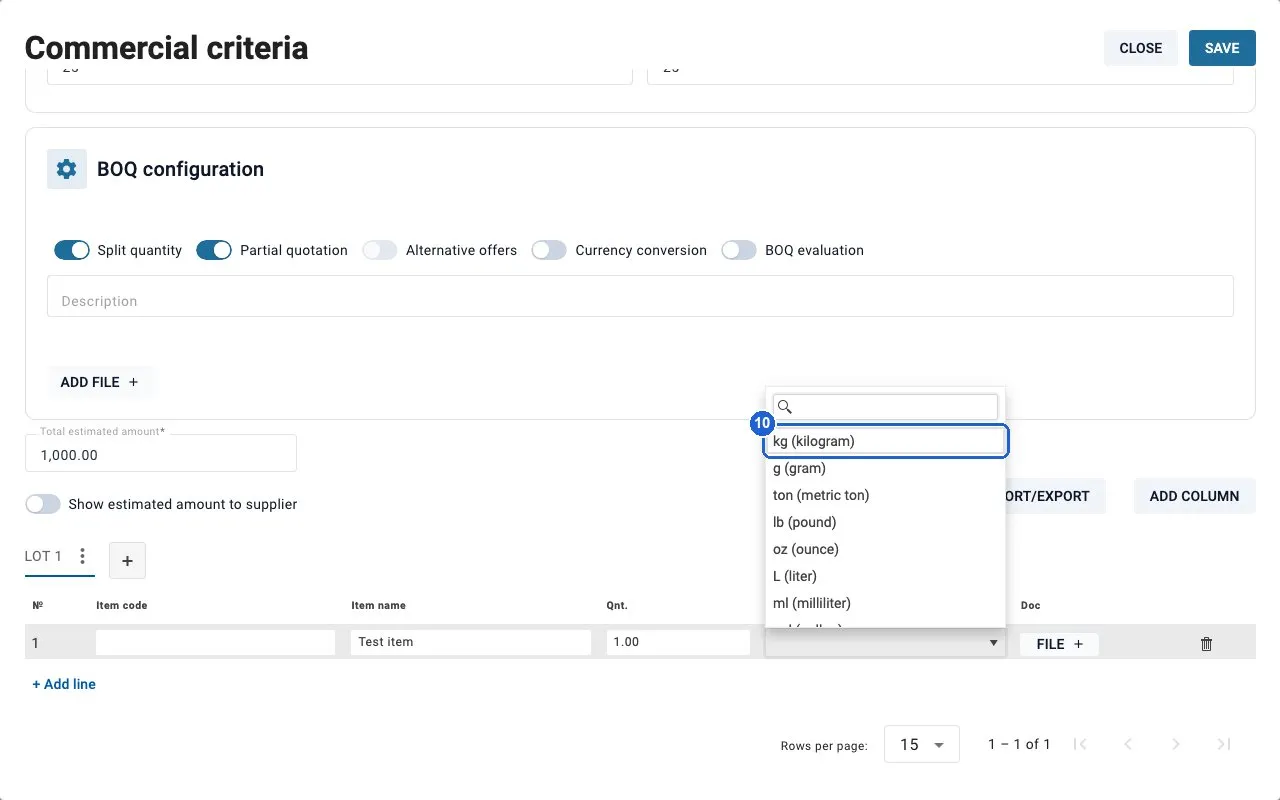
Step 10: Pick the unit — click “kg (kilogram)”. -
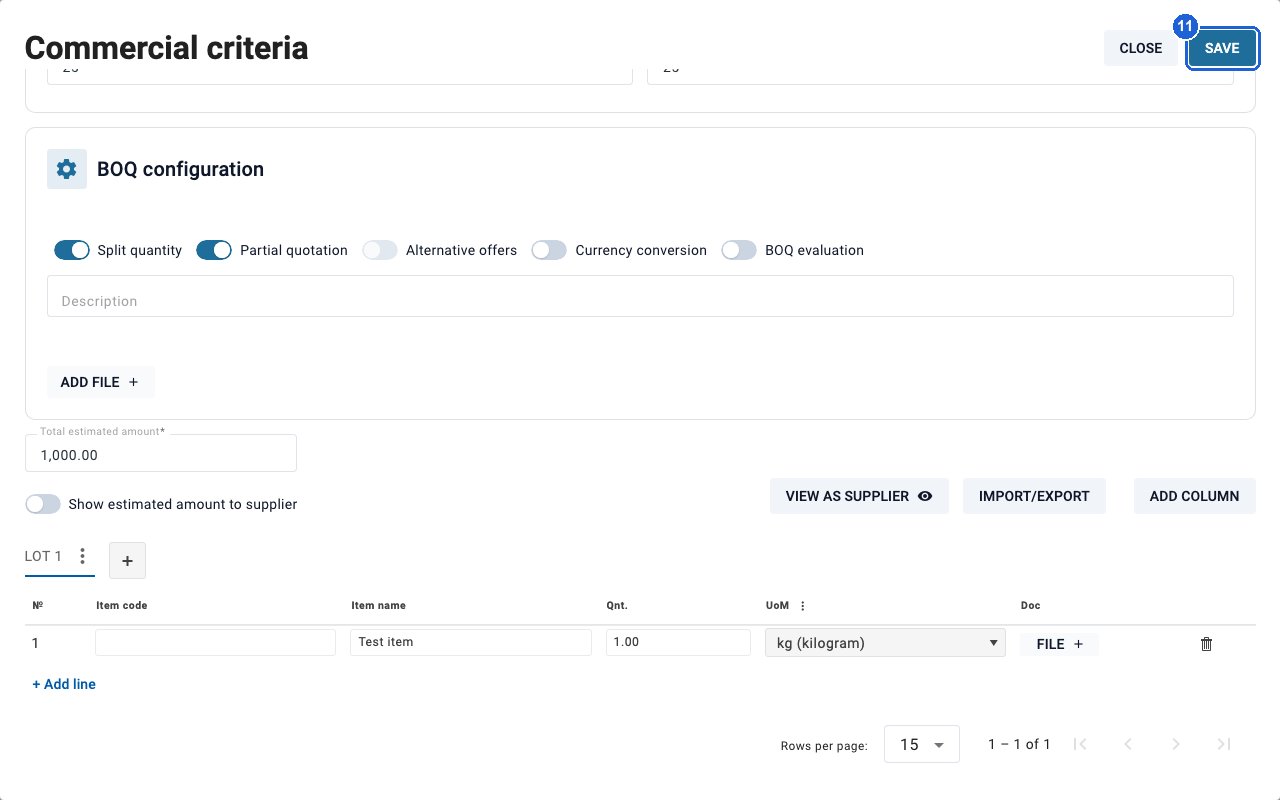
Save the commercial criteria
Click SAVE at the top right of the panel. Back on the Configure step, the Commercial criteria card shows “Filled”.
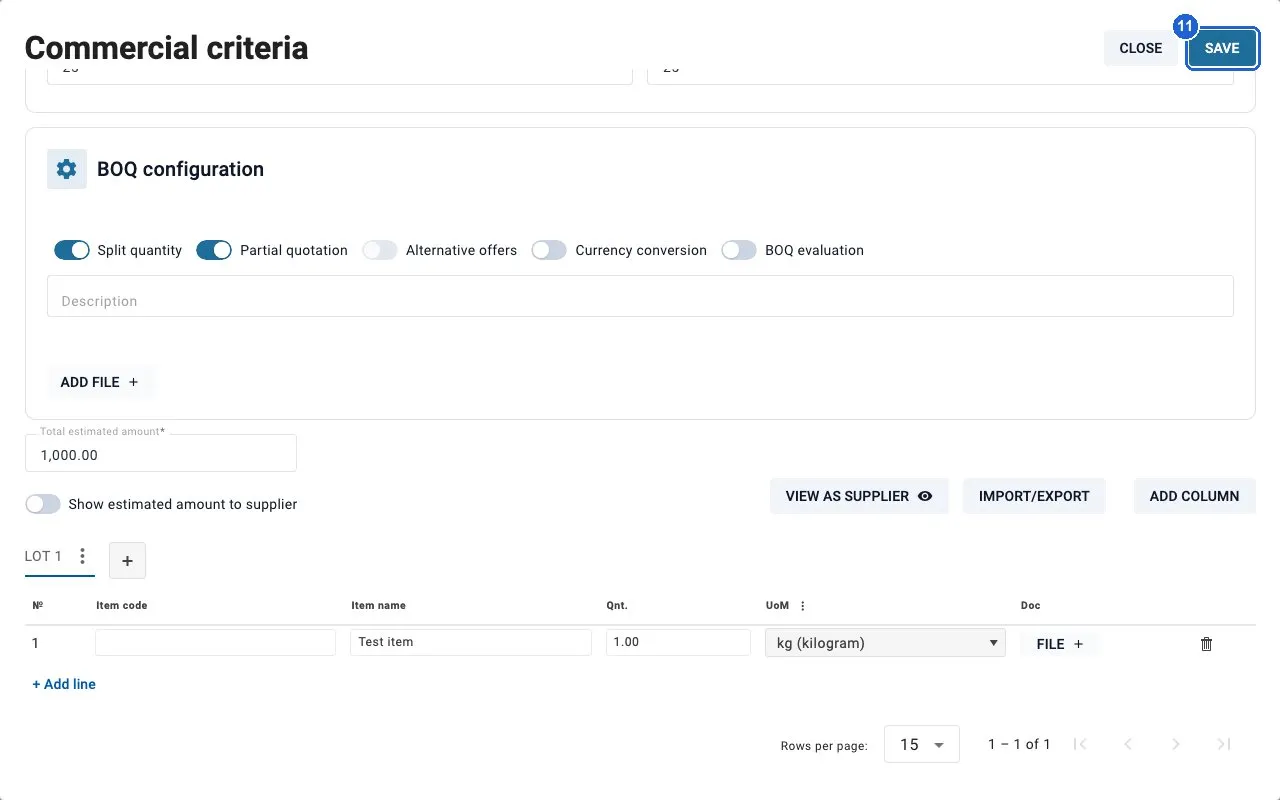
Step 11: Save the commercial criteria — click “SAVE”.
Good to know
Section titled “Good to know”- BOQ Score* and Advance payment score (%) are the commercial part of the event’s score. In the demo event, technical criteria 50 + BOQ 25 + advance payment 25 made 100.
- The BOQ configuration switches decide what suppliers may do in their offers: Split quantity, Partial quotation, Alternative offers, Currency conversion and BOQ evaluation (see “Enable BOQ evaluation”).
- The “+” next to the LOT 1 tab adds another lot (it is saved straight away).