

How can I edit event info? In which status?
Online version: https://help.allmaz.az/guides/sourcing/edit-event-info/
Event info (name, method, dates, category) is edited in the Event constructor while the event is still a Draft: Main info → FILL / EDIT → SAVE.
-
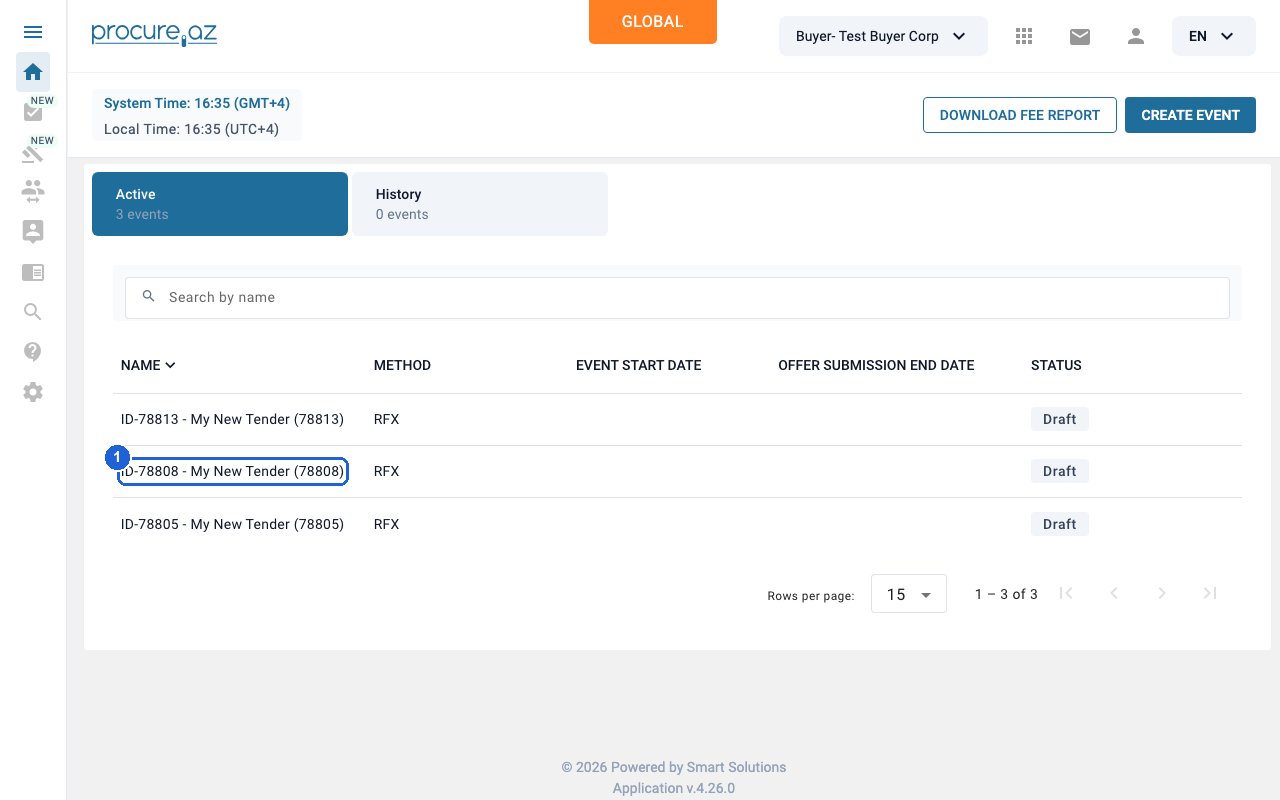
Open the draft event
On the Sourcing dashboard, click the draft event’s row (here “ID-78808 - My New Tender (78808)”) to open it in the Event constructor. Check the status badge in the header says Draft.
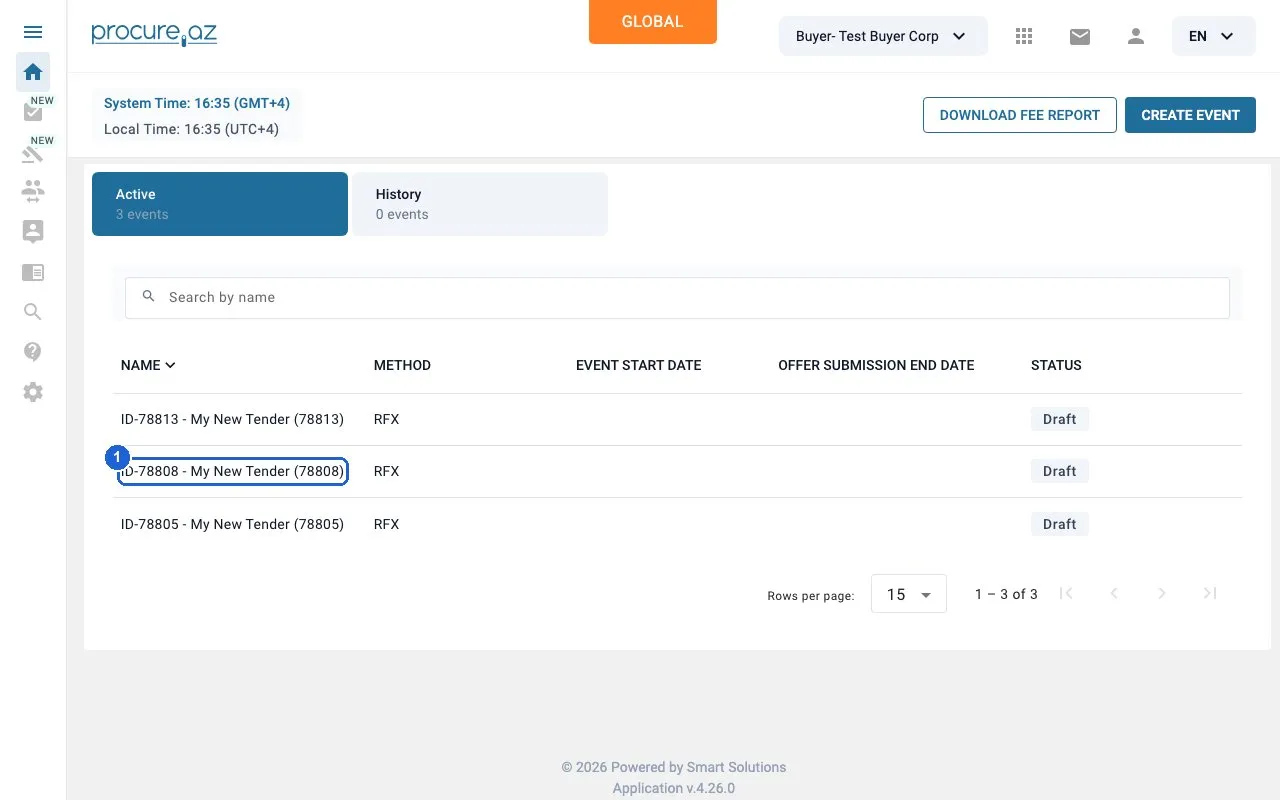
Step 1: Open the draft event — click “ID-78808 - My New Tender (78808)”. -
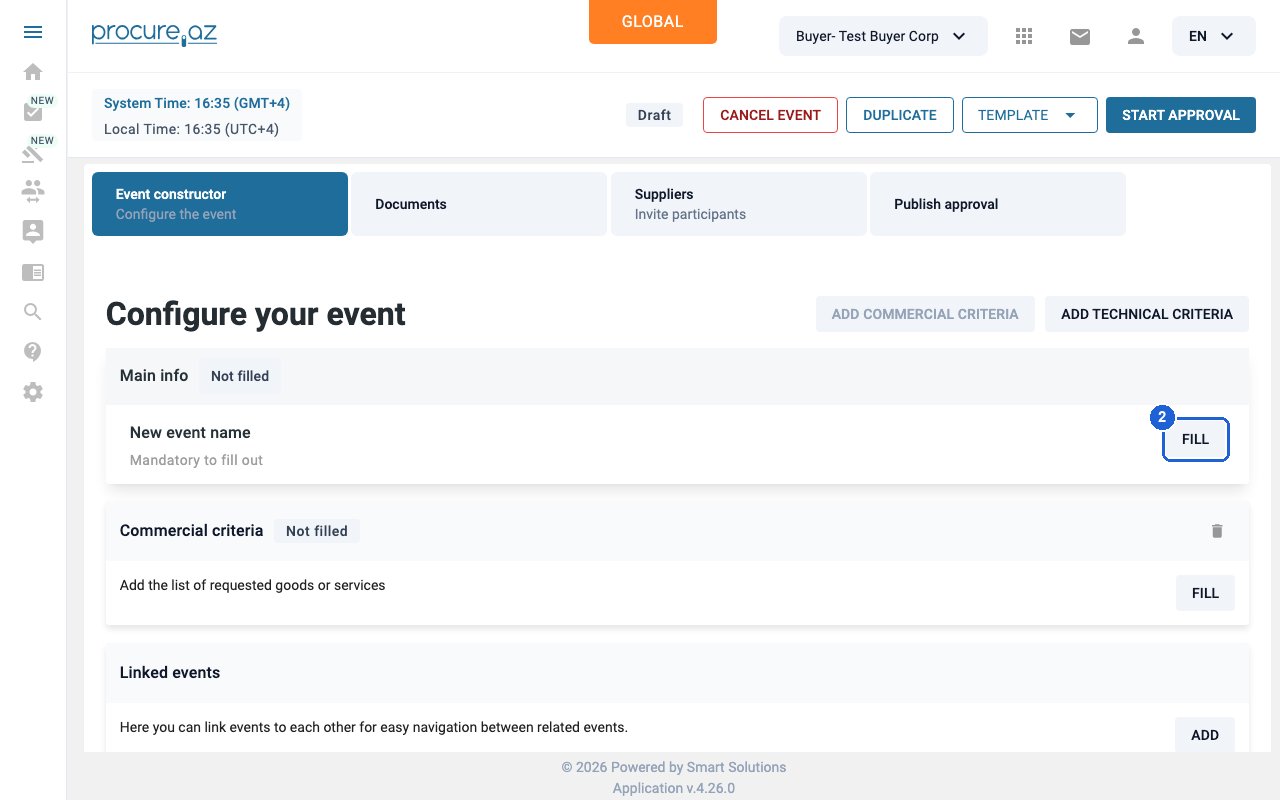
Open Main info
In the Main info block, click FILL (EDIT once Main info has been saved). The “Configure your event” panel opens.
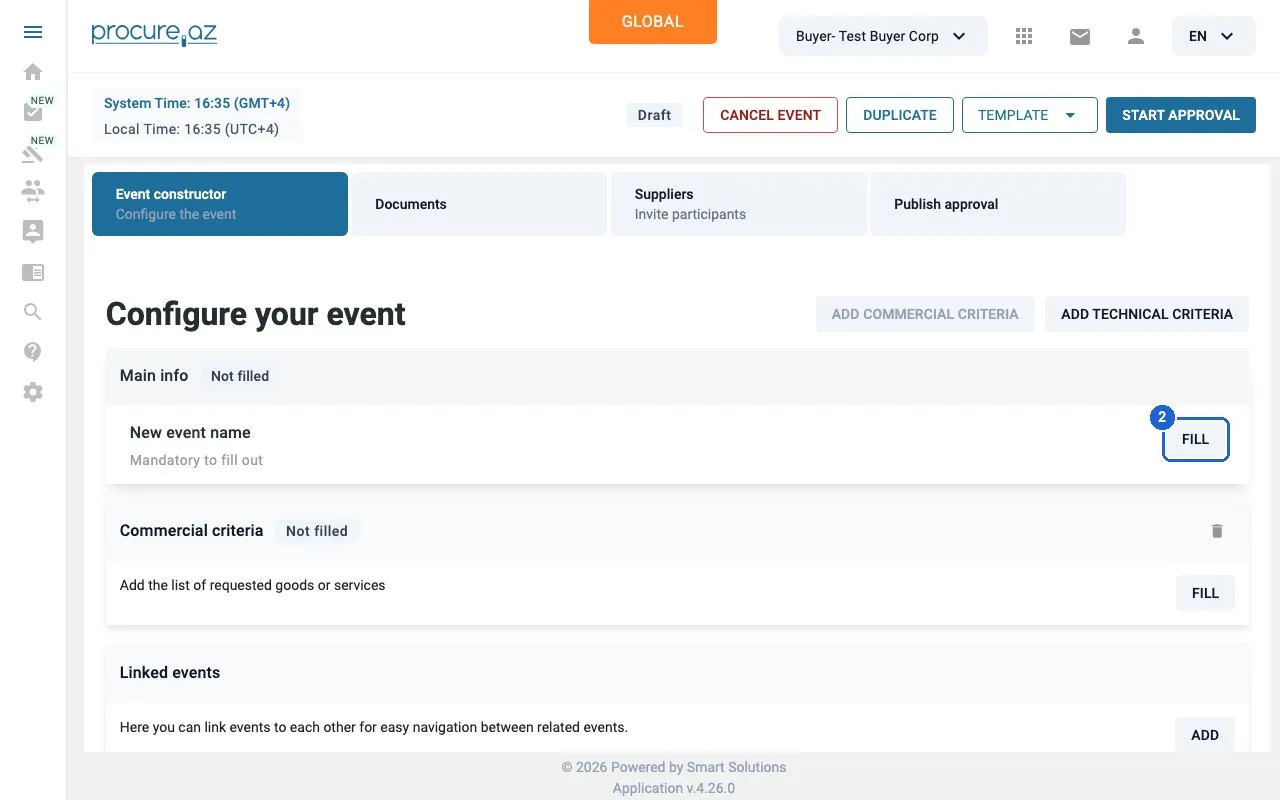
Step 2: Open Main info — click “FILL”. -
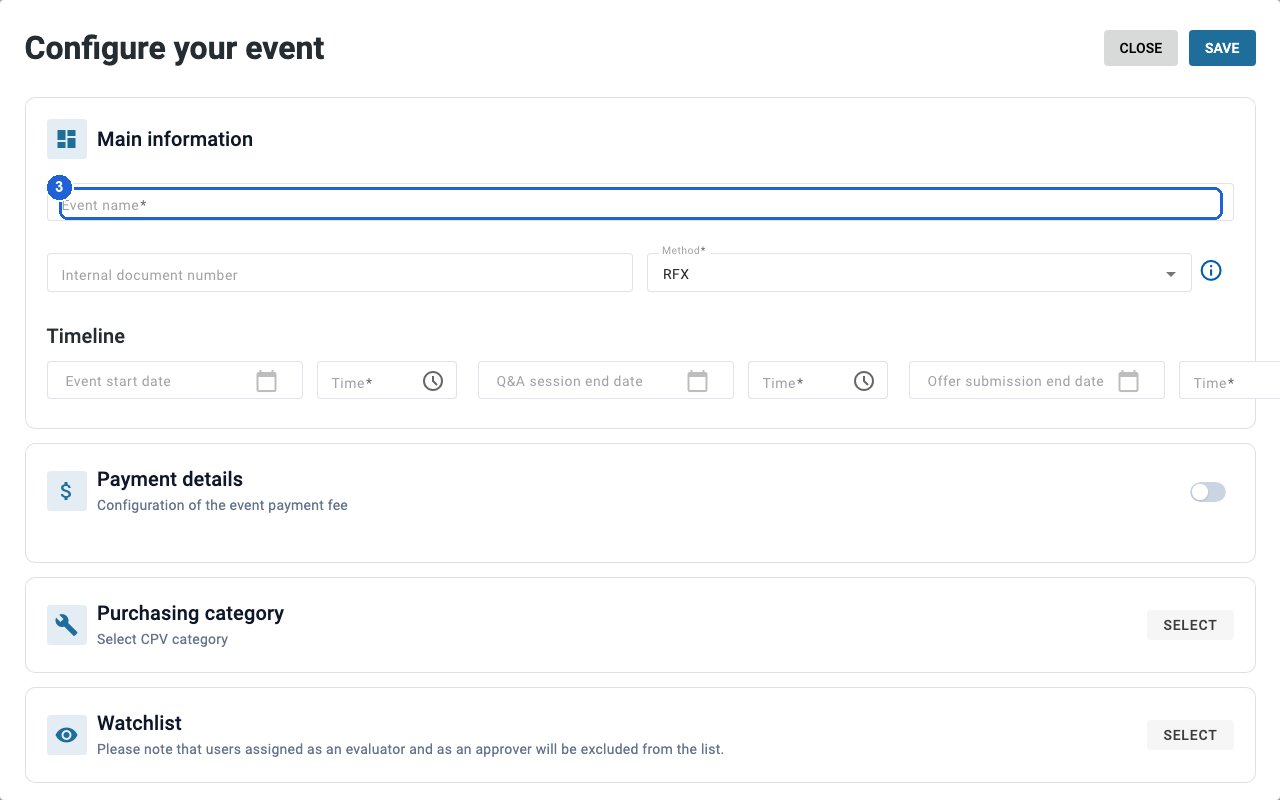
Change the name and document number
Type the event name in Event name* and, if you use one, your Internal document number.
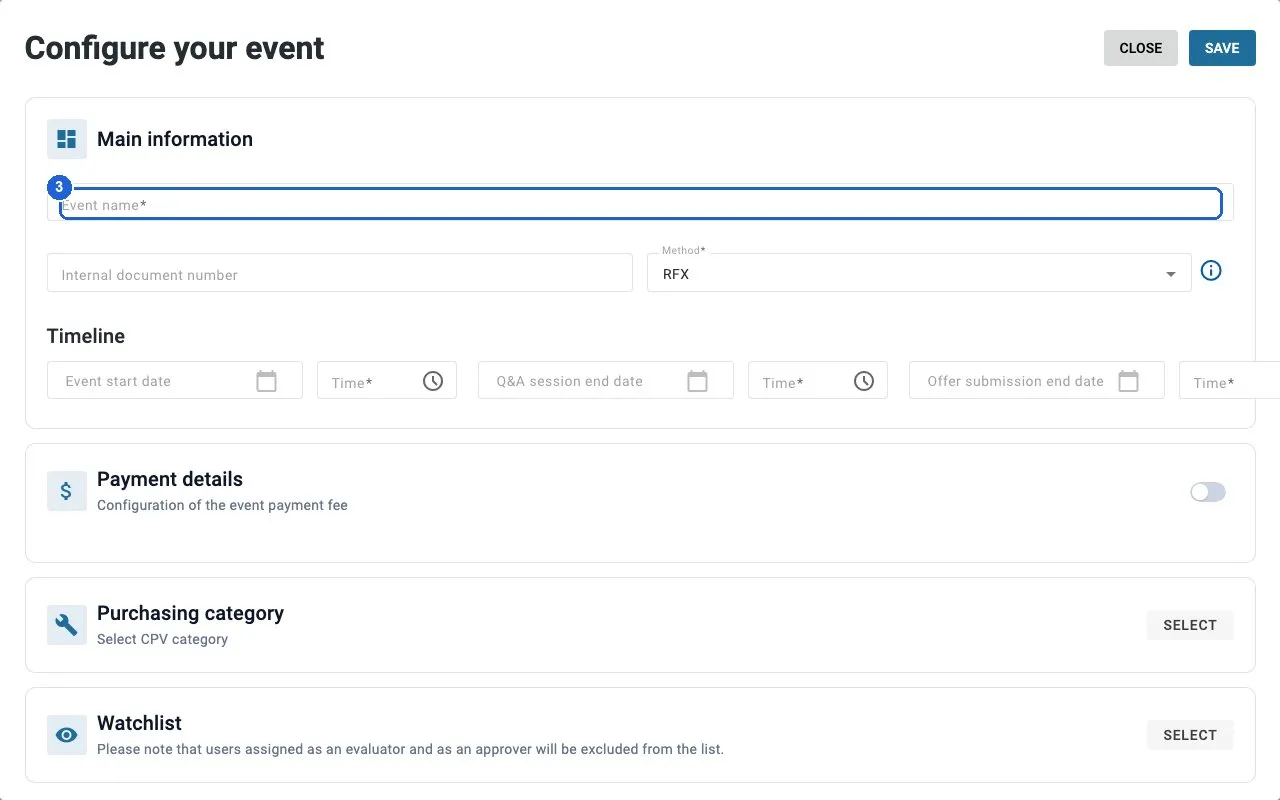
Step 3: Change the name and document number. -
Set the timeline
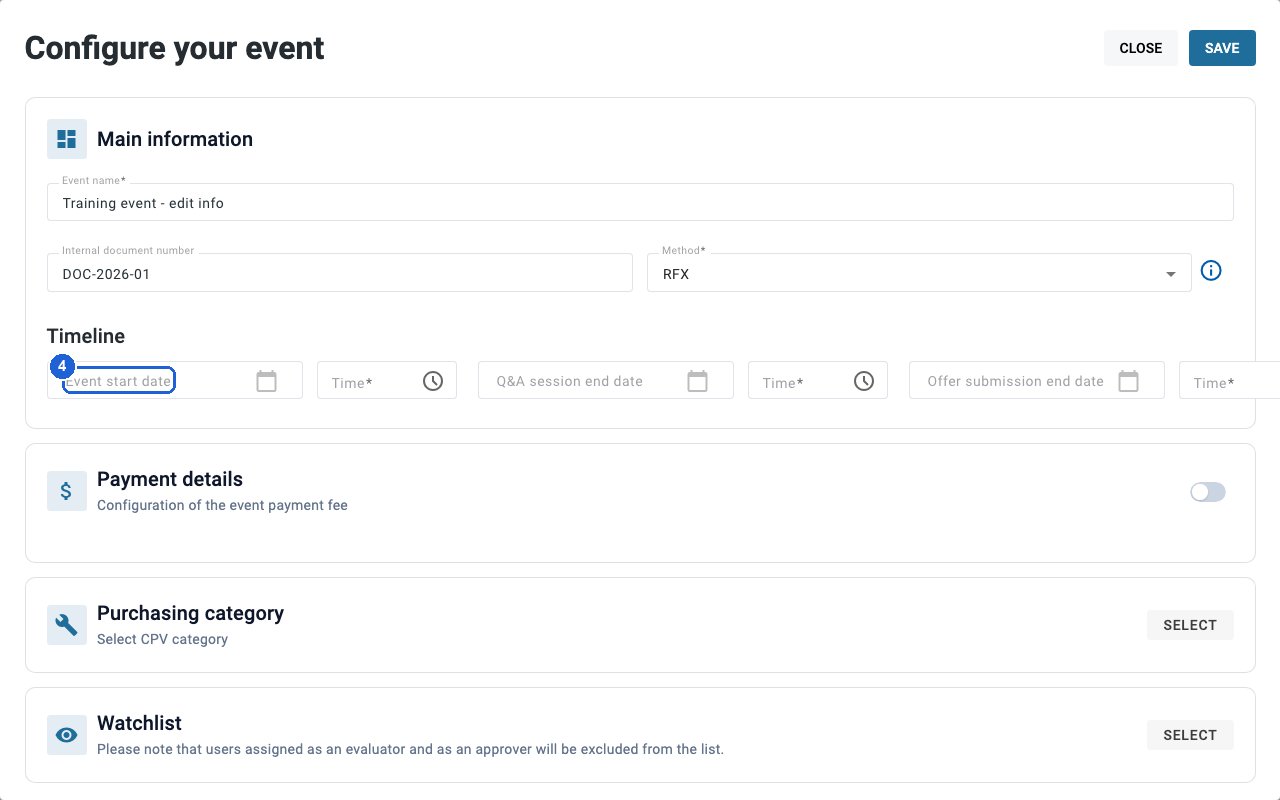
Type the Event start date, Q&A session end date and Offer submission end date (DD/MM/YYYY), each with its Time (HH:MM). Typing is quicker than the calendar and clock pickers.
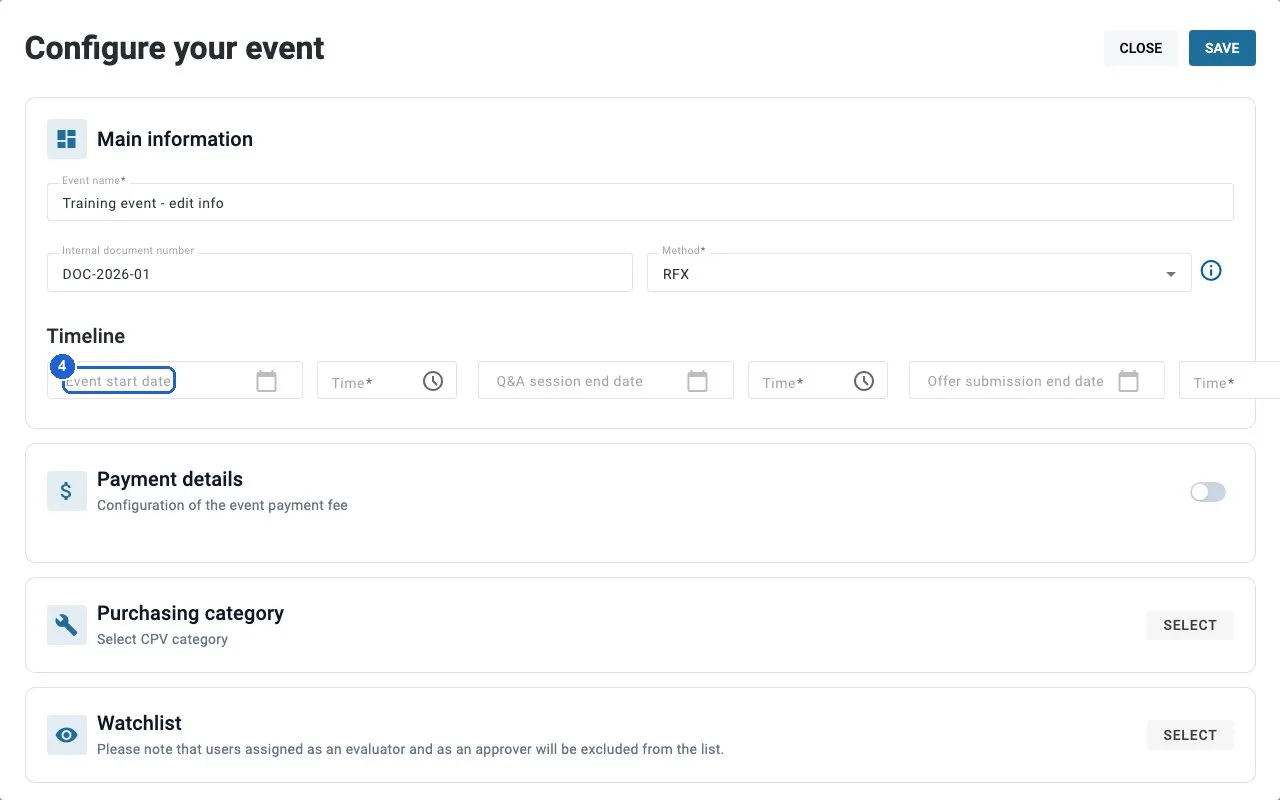
Step 4: Set the timeline — click “Event start date”. -
Open Purchasing category
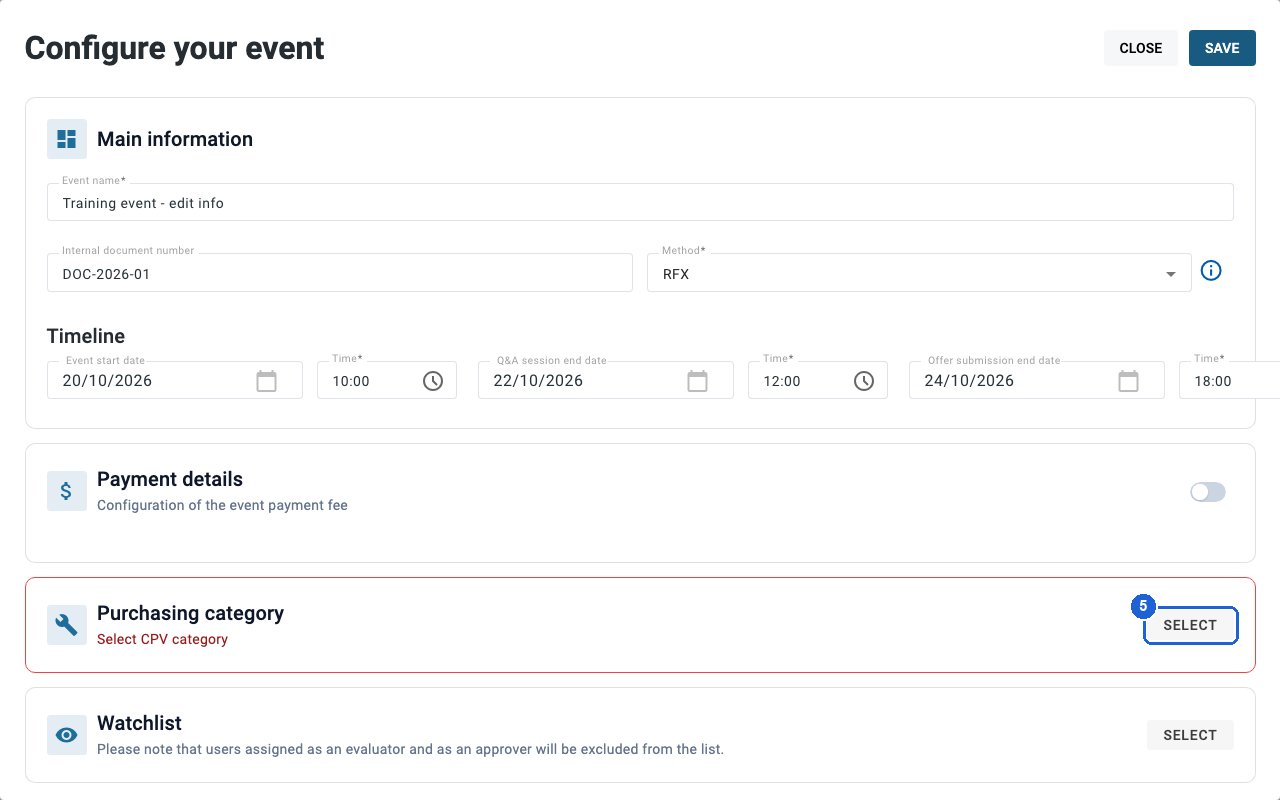
Under Purchasing category, click SELECT. The panel can’t be saved without a category.
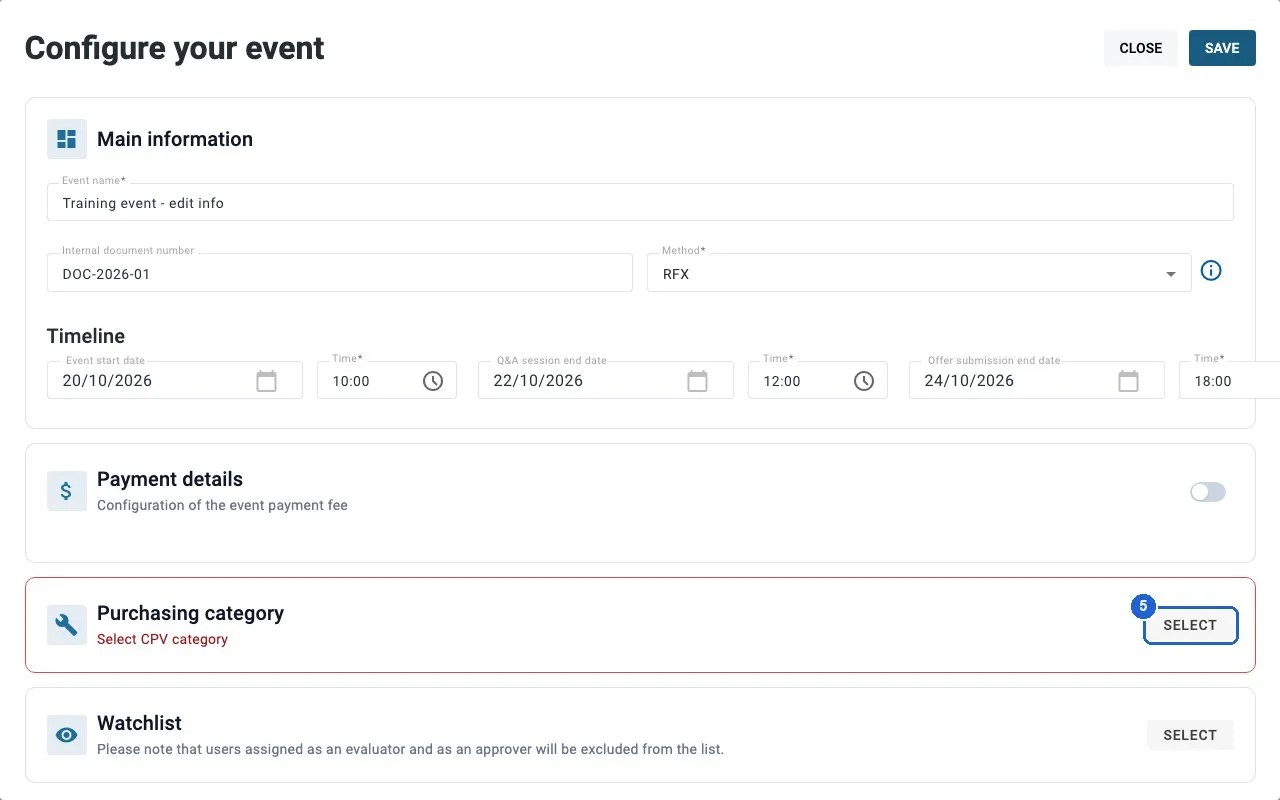
Step 5: Open Purchasing category — click “SELECT”. -
Choose a CPV category
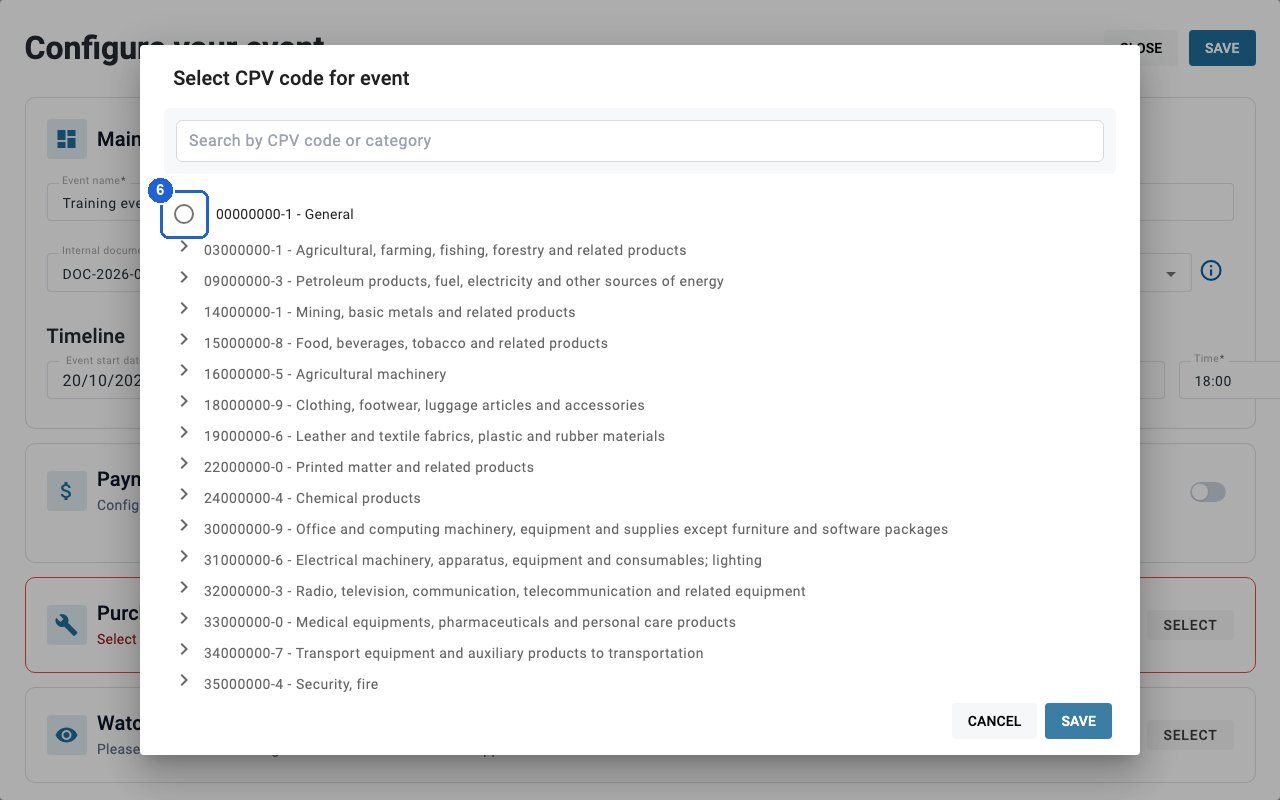
Select the CPV code that fits the purchase (here “00000000-1 - General”).
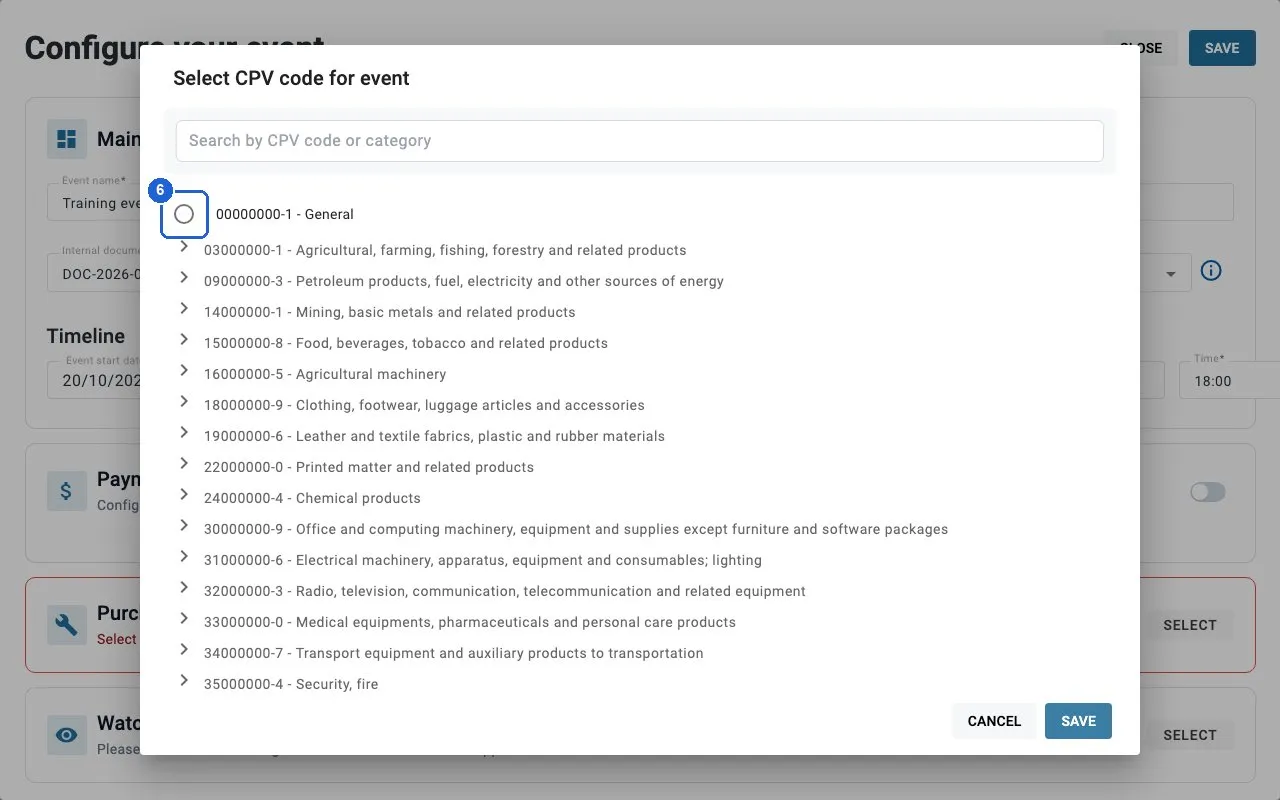
Step 6: Choose a CPV category — click “00000000-1 - General”. -
Confirm the category
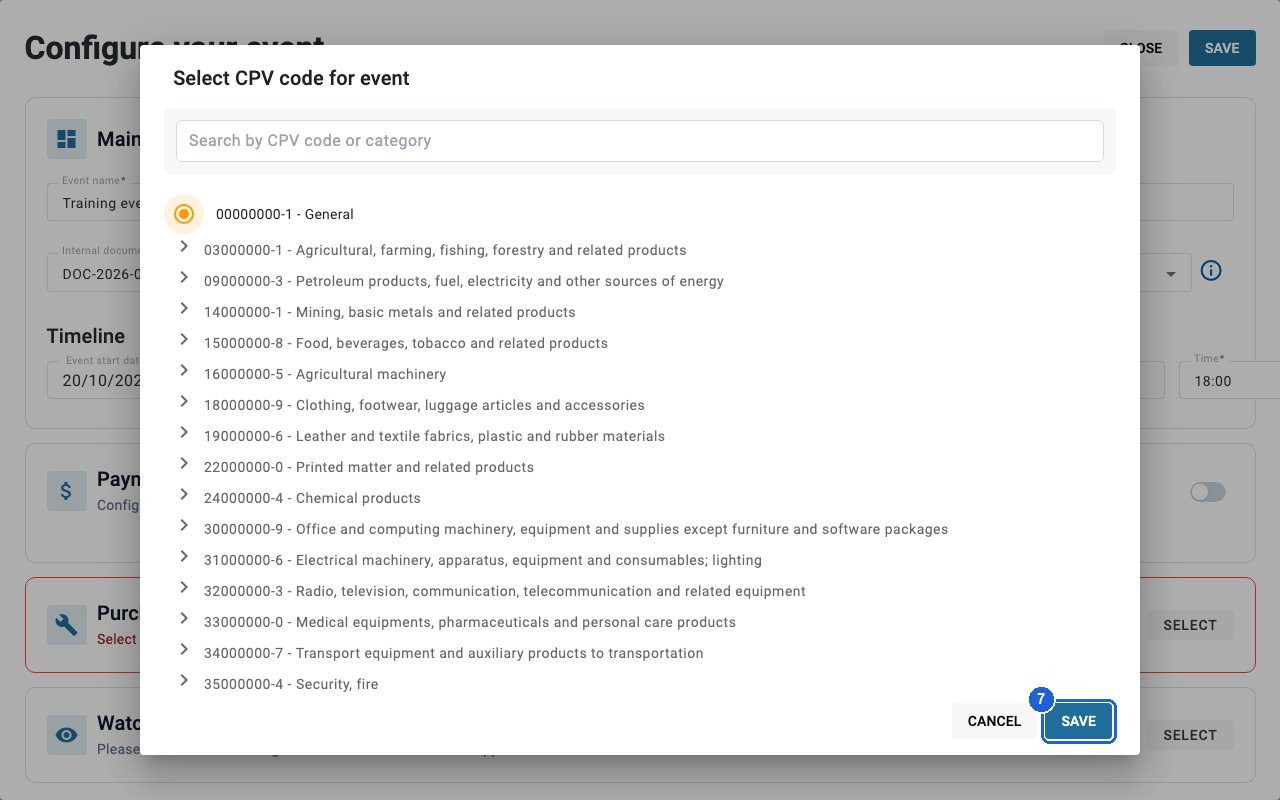
Click SAVE in the “Select CPV code for event” dialog. The block now shows “1 category selected”.
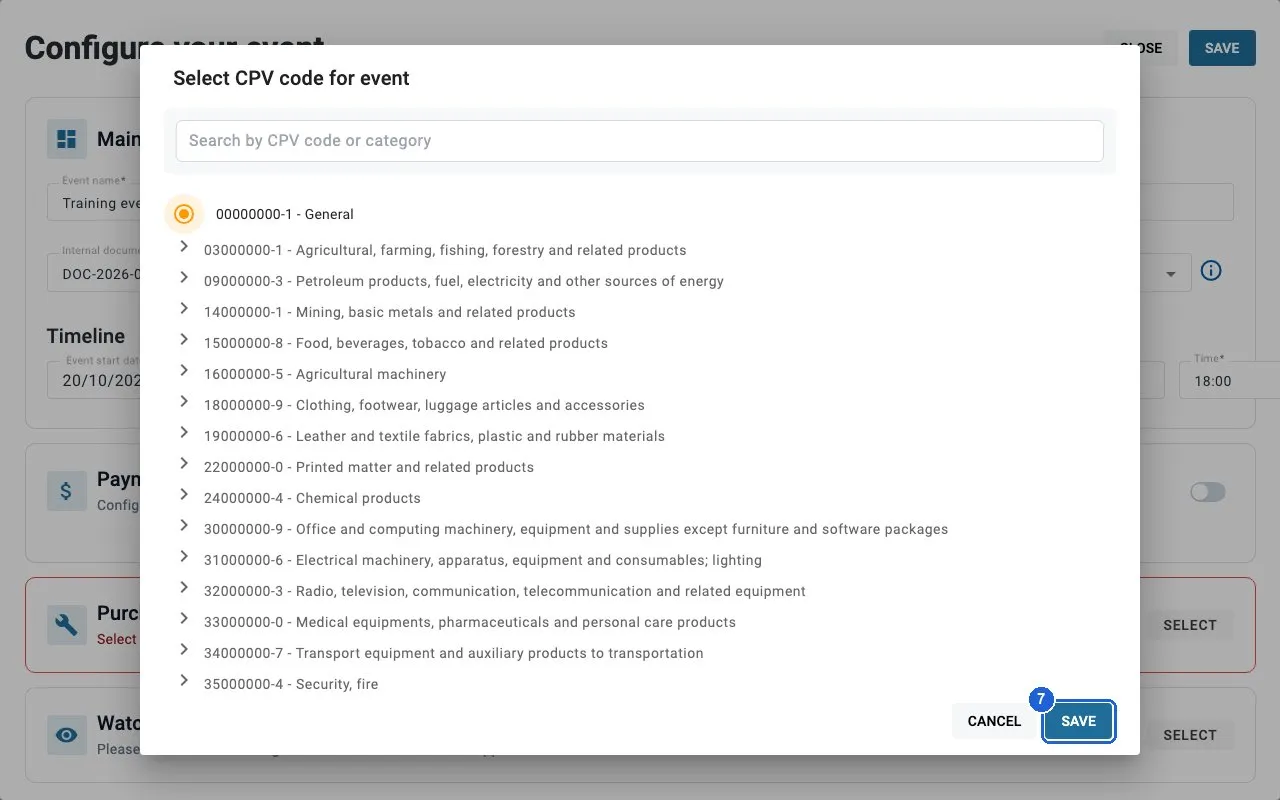
Step 7: Confirm the category — click “SAVE”. -
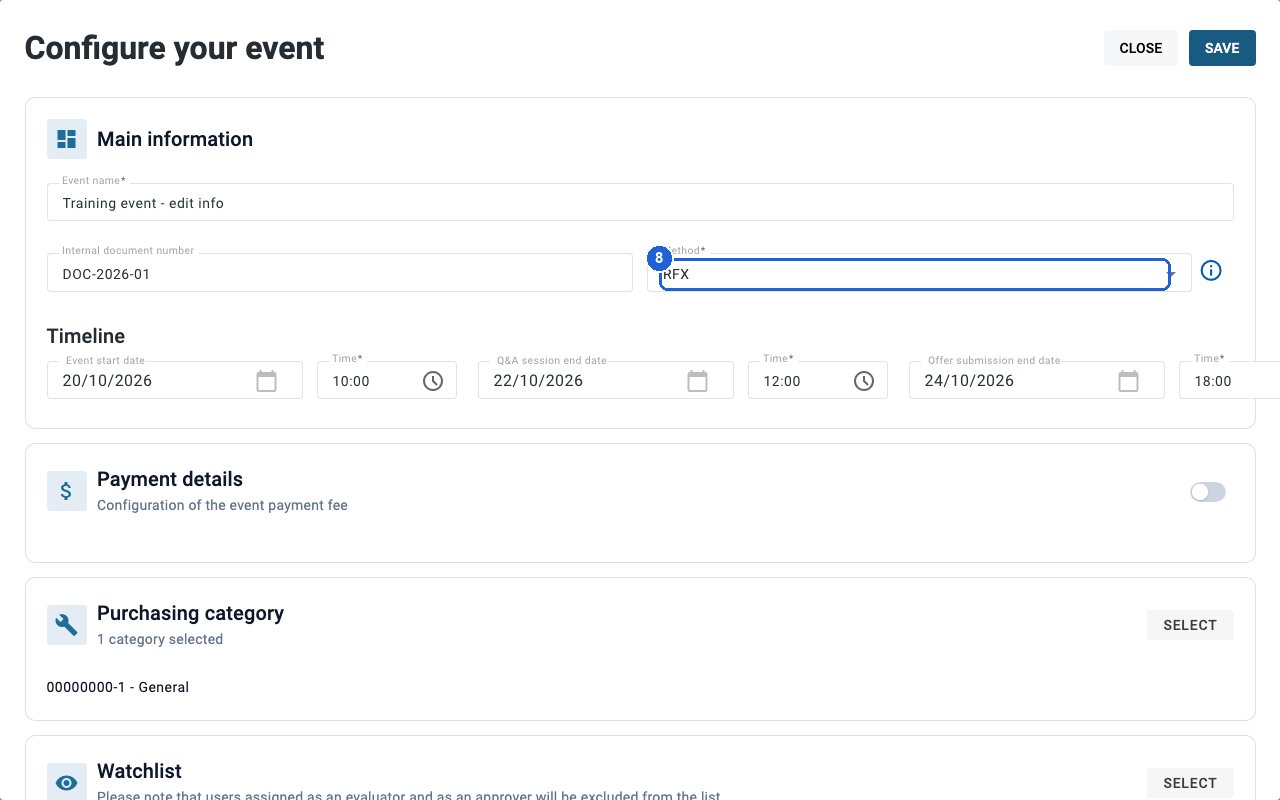
Choose the method
Open the Method* list and pick the procurement method, e.g. Request for Quotation (RFQ). The default “RFX” is not accepted on save.
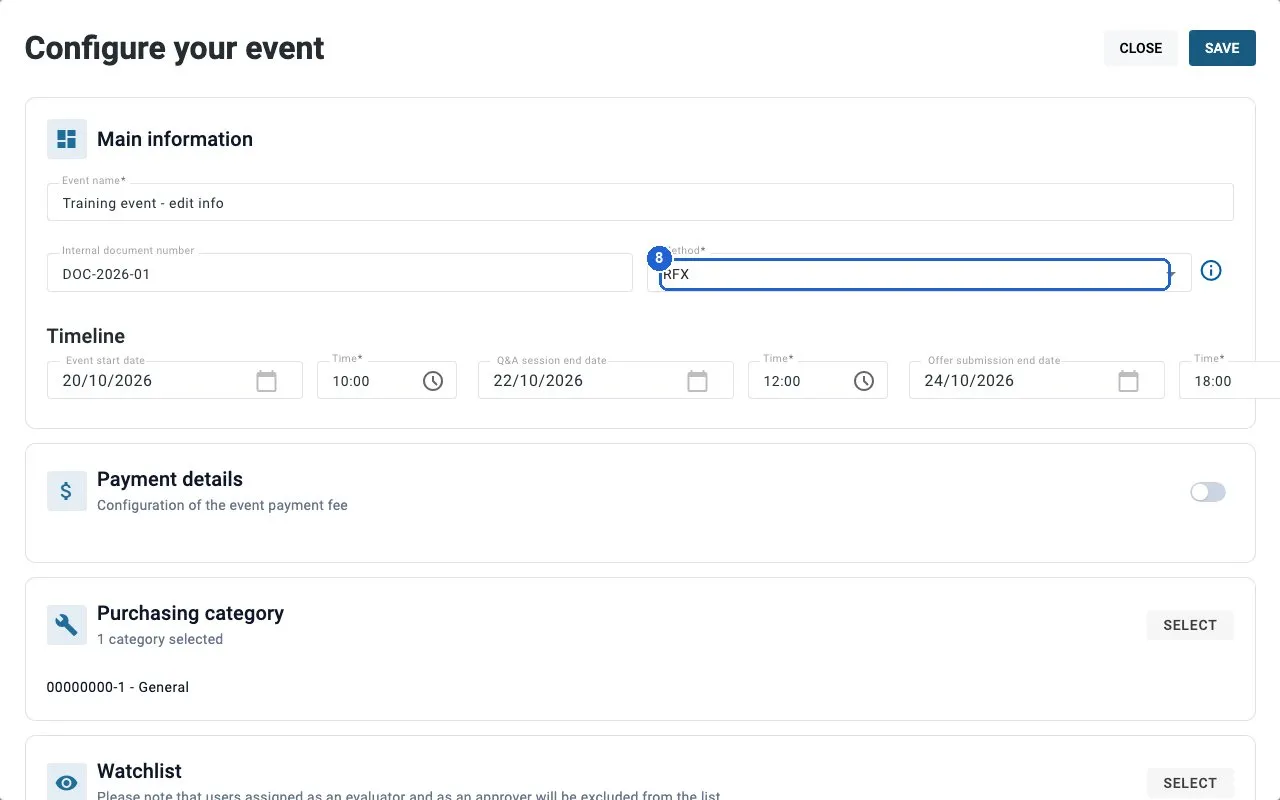
Step 8: Choose the method — click “Method*”. -
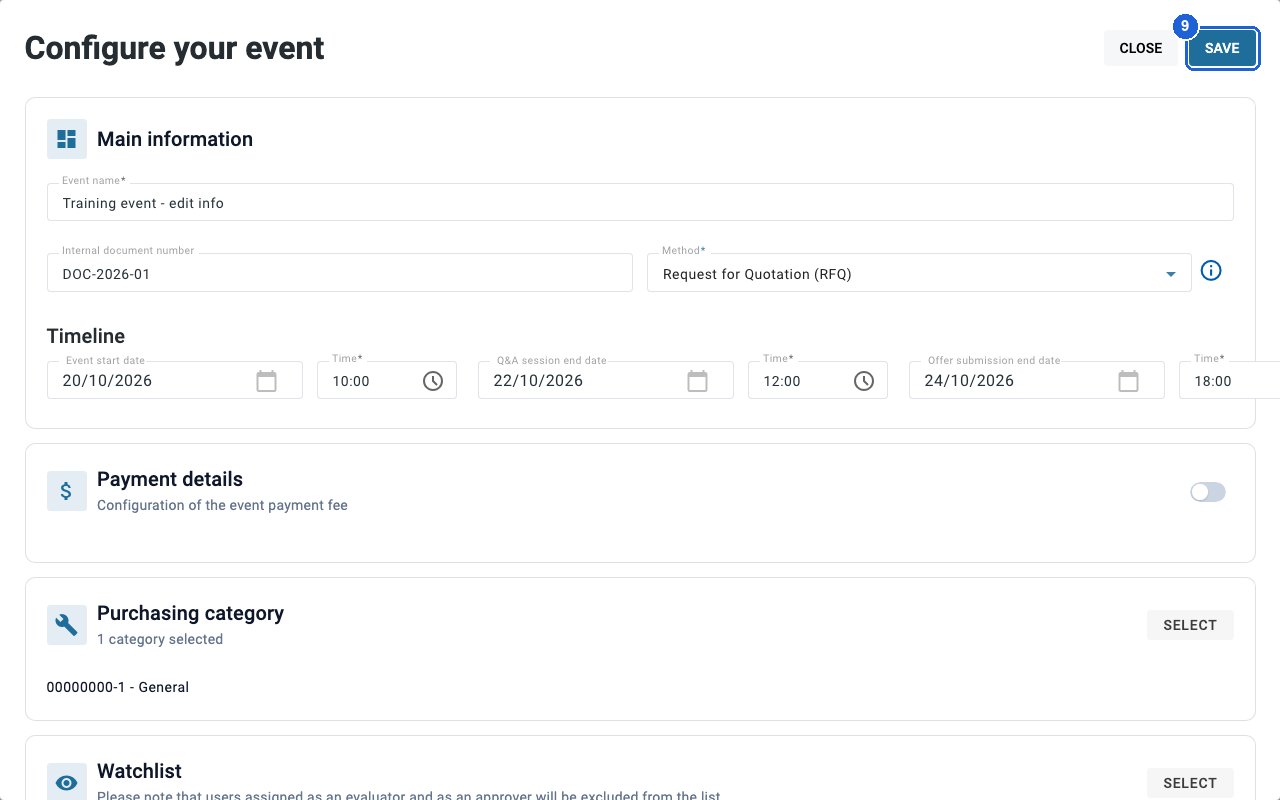
Save
Click SAVE at the top right of the panel. A “Saved” message appears and Main info shows “Filled” with your new details.
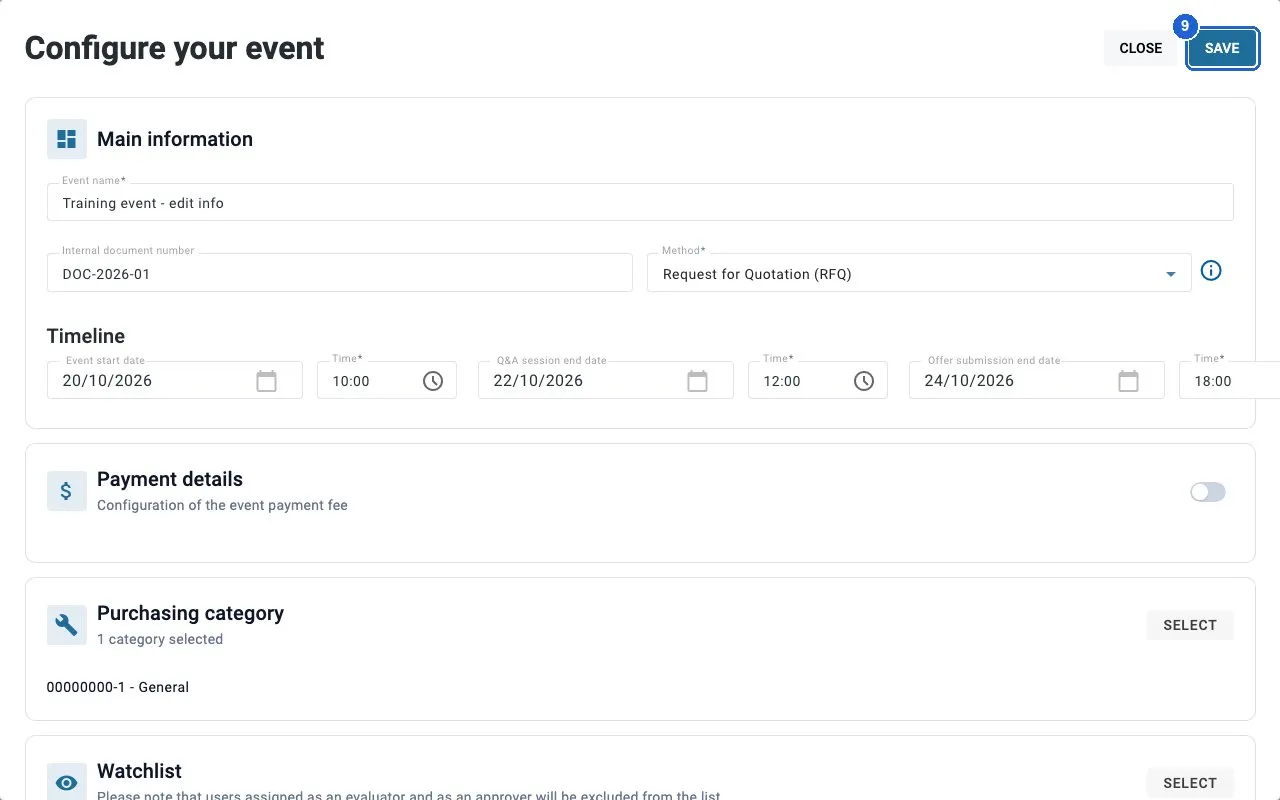
Step 9: Save — click “SAVE”.
Good to know
Section titled “Good to know”- Event info can only be edited while the event is a Draft. Once it is published, the General info tab is read only (no FILL or EDIT).
- SAVE checks the panel: without a Purchasing category it shows “Category is mandatory.”, and with Method left at “RFX” it shows “Please update the Method field selection.”
- After the first save the Main info button changes from FILL to EDIT. Use EDIT to change the event info again later.
- Payment details and Watchlist in the same panel are optional.